 by
by If you want how to zoom in on a video in CapCut desktop easily, you are in the right place. This simple skill can make your clips look cleaner, sharper, and more engaging in just a few clicks. Whether you are editing a tutorial, vlog, or social clip, the right CapCut zoom effect can help you guide the viewer’s eyes to the most important part of the frame.
In this guide, you will learn the easiest method, the smoother CapCut keyframe zoom trick, and a few smart tips for better video editing. Even if you are new to desktop editing, you can follow along with confidence.
“A good zoom does not shout. It guides the eye.”
What You Need Before You Start in CapCut Desktop
Before you begin how to zoom in on a video in CapCut desktop easily, make sure your clip is already inside the timeline and ready for editing. CapCut Desktop is designed to help creators work with many video formats and make quick edits without friction. It also supports AI tools and a wide effects library, so your zoom can fit into a bigger edit instead of standing alone.
This matters because zooming is not only about movement. It is about control. A clean zoom starts with a clear subject, enough resolution, and a calm edit plan. If you use CapCut for mobile editing too, the same logic still applies, but the desktop version gives you more room to fine-tune motion with precision.
| What to check first | Why it helps | Best result |
| Clear subject | Keeps the viewer focused | Better visual storytelling |
| Good resolution | Reduces blur when zooming | Cleaner close-up shots |
| Short clip segment | Makes zoom timing easier | Smoother pacing |
| Proper crop space | Avoids awkward framing | More natural motion |
How to Zoom In on a Video in CapCut Desktop Easily With the Scale Feature
How to Easily Zoom In on a Video in CapCut Desktop
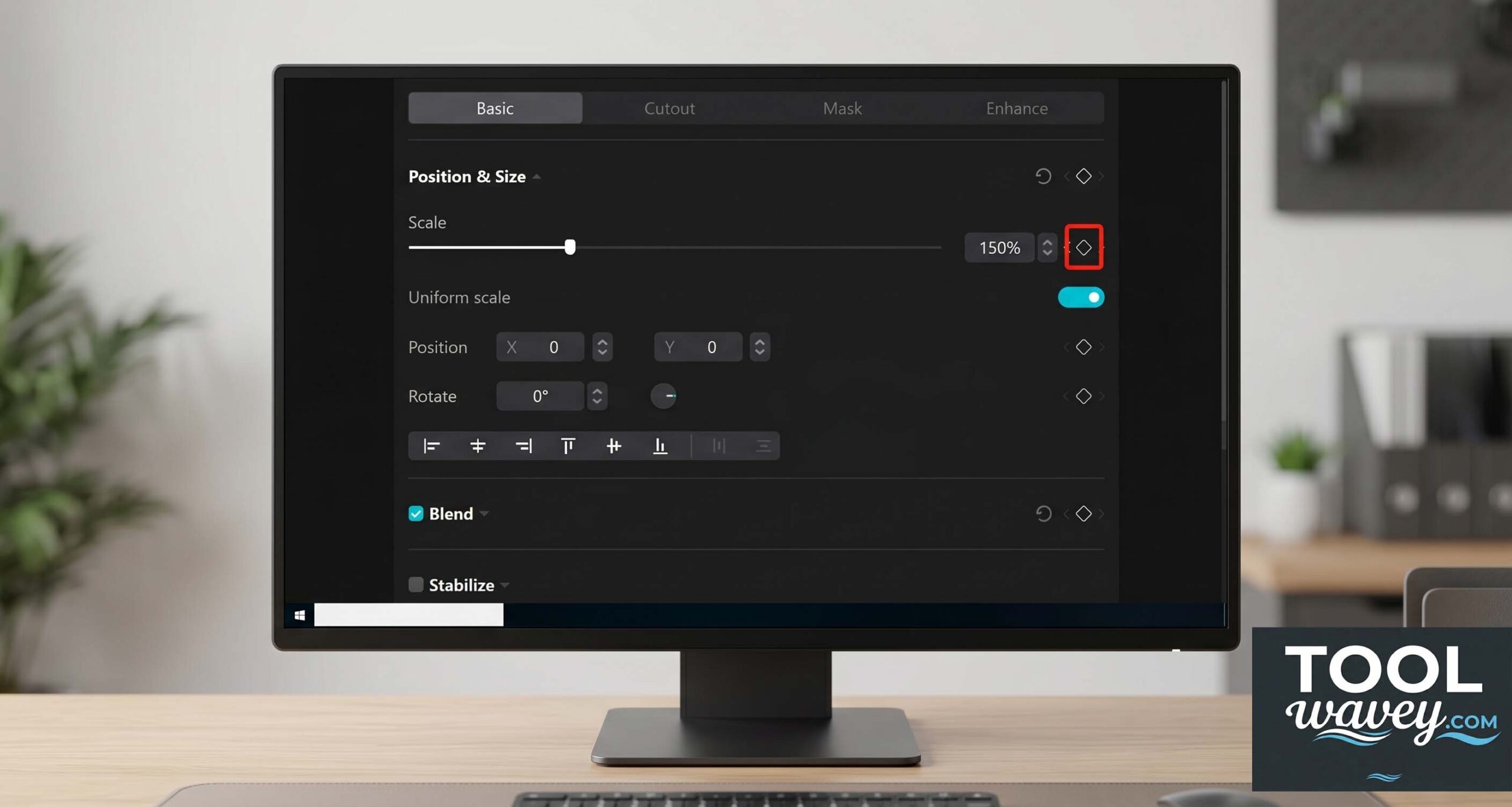
The fastest method for zoom in CapCut PC is the CapCut scale feature. You select the clip, open the transform controls, and increase the size until the frame looks closer. This is simple manual zoom in CapCut, and it works well when you want a direct close-up without extra effects. CapCut’s desktop editor supports precise animation control, so this basic method is still very useful.
This method is best when you want a clean zoom in on video in CapCut look with no flashy styling. For example, a teacher showing a button in a tutorial might zoom in on that exact area. A product video might zoom toward a logo or detail. It is plain, but it works. That is often the smartest choice for beginners learning how to apply zoom effect in CapCut desktop.
How to Make a Smooth Zoom in CapCut Desktop With Keyframes
How to Zoom In on a Video in CapCut Desktop Easily
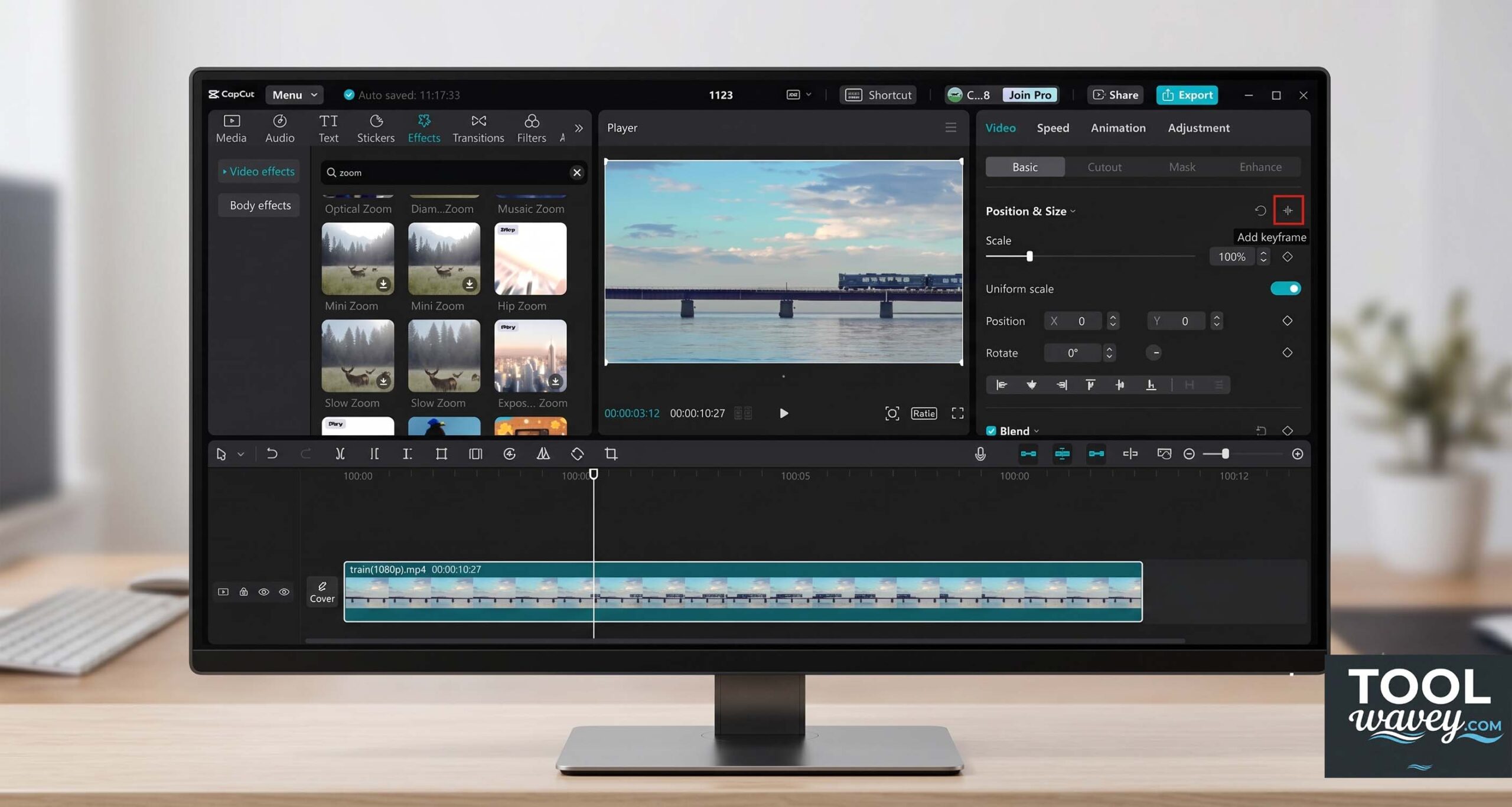
If you want a slow zoom in CapCut style, keyframes are the better choice. CapCut’s desktop page says its keyframes and graphs help make smoother and more precise animation, which is exactly what you need for a gentle move. This is the heart of CapCut keyframe zoom work, because it lets you control where the zoom starts and where it ends.
Think of keyframes like two fence posts. One marks the beginning. The other marks the end. The software fills the space between them. That is why how to use keyframes to zoom in CapCut is so useful for creators who want a smooth zoom in CapCut instead of a sudden jump. It also helps when you are trying to learn how to do smooth slow zoom in CapCut with more polish.
How to Use the CapCut Zoom Effect and Zoom Lens Effect
How to Zoom In on a Video in CapCut Desktop Easily
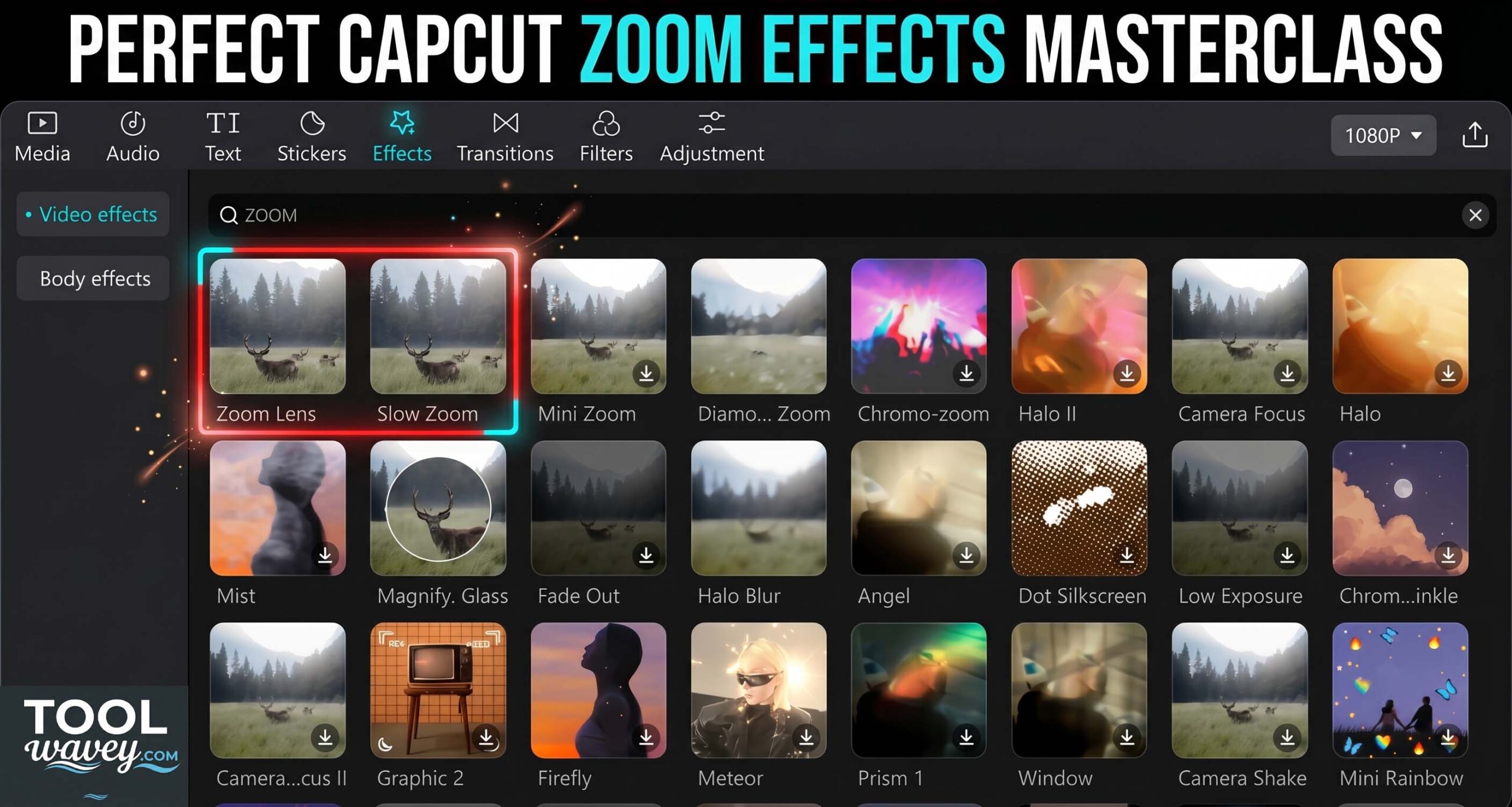
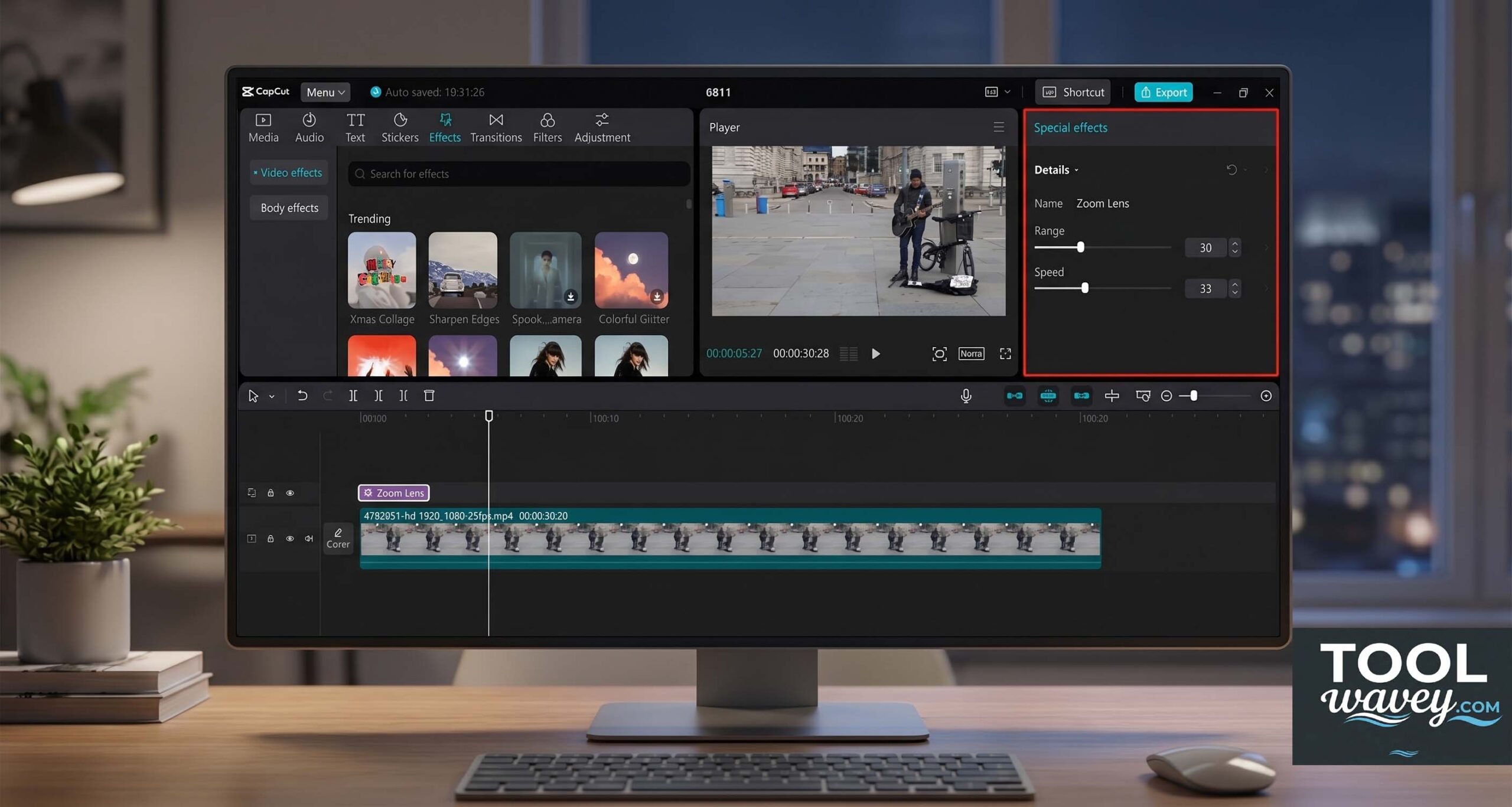
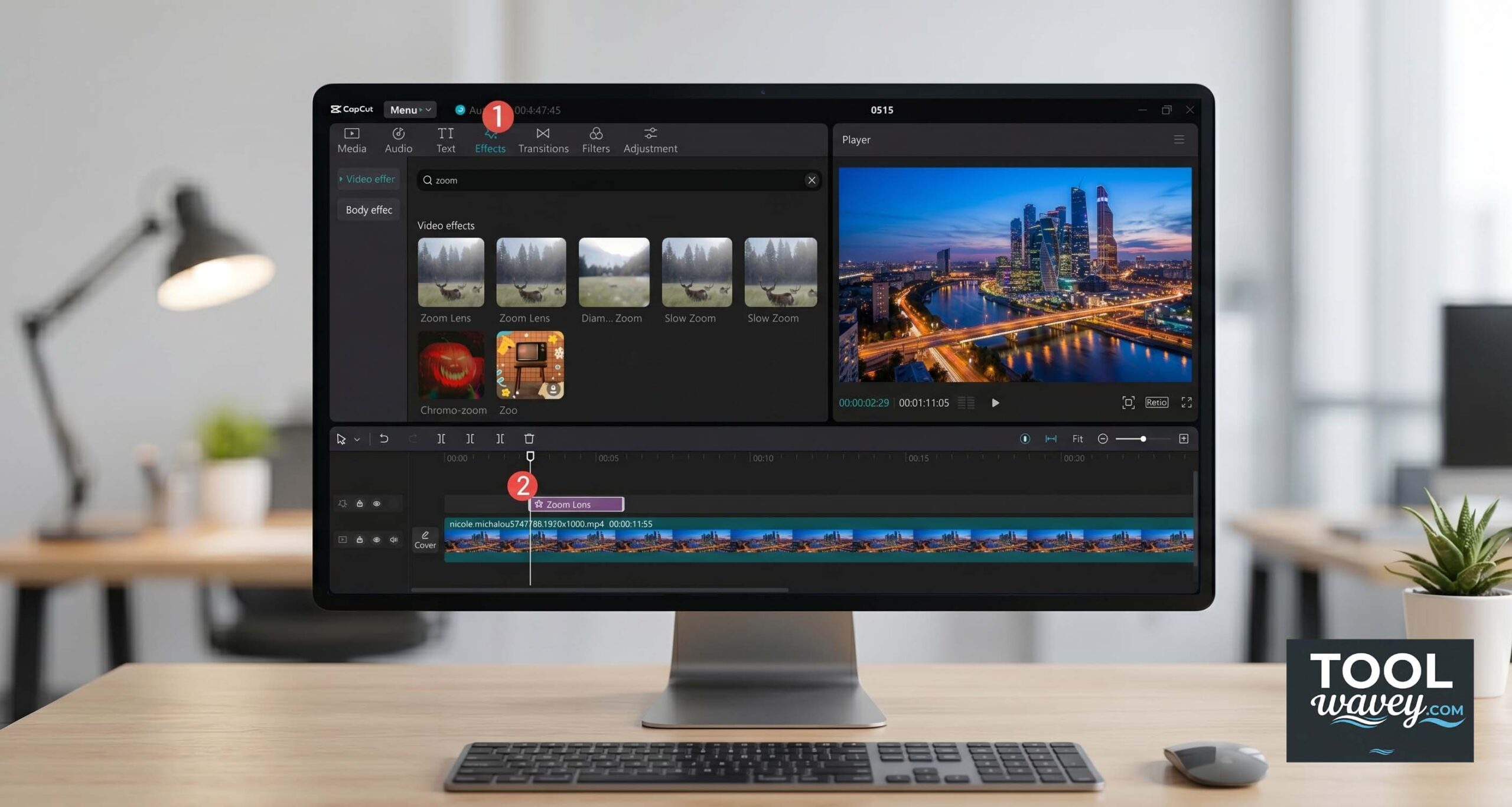
CapCut also gives you ready-made effects for people who do not want to build motion by hand. Its official pages promote a CapCut zoom effect, a CapCut Zoom Lens effect, and zoom in effects that can highlight key moments, adjust zoom speed, and add cinematic flair. These presets are handy when you want speed and style at the same time.
This path is ideal for creators who want a simple how to zoom in on CapCut without keyframes workflow. You can search the effects library, drop the effect on the clip, and change its length. If you are showing an intro, reaction, or reveal shot, the preset route can feel much faster than manual animation. That is why many beginners like CapCut effect preset options first.
How to Use CapCut AI Zoom Templates and 3D Zoom
When speed matters, CapCut AI zoom templates can save time. CapCut’s template pages advertise ready-made zoom animation templates that let users customize and export in seconds. These templates are a strong fit for creators chasing a TikTok trend or trying to make content look sharp without spending forever on fine-tuning.
You can also use CapCut 3D zoom for a more dramatic look. CapCut says its 3D zoom effects create layered depth and stronger storytelling, which makes them useful for the photo trend style that spreads fast on social media. This is a good example of subject detection and visual emphasis working together. For creators asking how to use CapCut 3D zoom effect, this is the section that saves time and adds flair.
How to Zoom In on a Specific Area and Zoom Out in CapCut
Sometimes you do not want the whole frame to get bigger. You only want the viewer to notice one part. That is when how to zoom in on a specific area in CapCut PC becomes important. With keyframes and careful scaling, you can push attention toward a face, a product, or text on screen while leaving the rest of the clip balanced. CapCut’s desktop tool is made for that kind of focused editing.
A smart editor also knows when to pull back. Learning zoom out in CapCut matters just as much as zooming in. If you combine a zoom in and zoom out move in one clip, the result can feel more natural and more cinematic. That is why many creators search for how to zoom in and zoom out in CapCut when they want a polished opening or a dramatic reveal.
| Goal | Best method | Feel |
| Fast focus | Zoom effect | Simple and direct |
| Smooth movement | Keyframes | Clean and cinematic |
| Trendy look | AI templates | Quick and social-friendly |
| Depth effect | 3D zoom | Stylish and dramatic |
How to Fix Zoom Effect Not Working in CapCut Desktop
Sometimes the problem is not the idea. It is the setup. If how to fix zoom effect not working in CapCut is your current headache, check whether the clip is selected, the effect is placed on the right segment, and the timing matches the playhead position. CapCut’s desktop features rely on proper clip selection and timeline control, so a tiny mistake can make the zoom seem missing.
Blur can also happen when the source clip is too soft or the zoom is too aggressive. CapCut offers a free zoom tool and AI editing features, but no tool can fully rescue weak footage. That is why the best path for best way to zoom in on CapCut video is usually high-quality source video, moderate scaling, and a steady timeline. Good input gives better output. Always.
Best Ways to Make a Cinematic Zoom in CapCut Desktop
A cinematic zoom effect looks smooth, deliberate, and quiet. It does not rush. It gives the viewer time to breathe. If you want how to make cinematic zoom in CapCut, keep the zoom distance small and use keyframes or graphs for a soft curve. CapCut’s official desktop materials call out keyframes and graphs as a way to make animation smoother and more precise.
This is where good taste matters more than flashy motion. A clean close-up often beats a wild zoom. For example, a creator showing a coffee pour might slowly move into the cup just before the steam rises. That tiny move feels elegant. It is the kind of detail that turns CapCut video effects into real storytelling instead of decoration.
A Small Case Study: From Flat Clip to Better Story
Imagine a travel creator posting a five-second street clip. At first, the shot feels flat. After a gentle zoom, the frame shifts toward a musician in the corner. That tiny move changes the whole scene. It turns random footage into a moment with a clear subject and emotional weight. That is the power of video editing with intention.
The same idea works for product videos. A seller can start wide, then move in toward the label, texture, or feature. This keeps the viewer focused and helps the message land faster. In many cases, how to zoom in on CapCut on phone and how to zoom in on CapCut PC lead to the same creative goal. The device changes. The story does not.
The smallest motion often makes the biggest difference.
FAQ About How to Zoom In on a Video in CapCut Desktop Easily
How do I zoom in on a CapCut video?
You can zoom in by selecting your clip and using the scale tool or keyframes to increase the size of the video.
How to zoom in and out CapCut desktop?
Use keyframes to zoom in first, then add another keyframe to zoom out smoothly on the timeline.
How do I zoom a specific part of a video?
Move the frame using keyframes or position controls to focus only on the area you want.
How do I zoom in on video editing?
In video editing, you increase scale or use zoom effects to bring the subject closer on screen.
How to zoom in on timeline CapCut desktop?
On the timeline, use the zoom slider or keyframes to control timing and smooth zoom transitions.
Conclusion
If you want how to zoom in on a video in CapCut desktop easily, start simple. Use the CapCut scale feature when speed matters. Use CapCut keyframe zoom when you want control. Use CapCut Zoom Lens effect or CapCut AI zoom templates when you want a fast preset. CapCut gives you all three paths, so you can choose the one that fits the story.
The best edits feel invisible. They make the viewer focus on the moment, not the technique. That is why this skill matters for tutorials, vlogs, and short-form video made for modern platforms. Once you understand the rhythm, how to zoom in on a video in CapCut desktop easily becomes less of a trick and more of a habit.
Also read:
How to Add Motion Blur in CapCut Desktop Free: A Simple Guide for Smooth, Cinematic Edits
How to Easily Reduce Audio Noise in CapCut Desktop for Free (2026 Ultimate Guide)
How to Auto Caption Videos in CapCut Desktop for Free: A Complete CapCut PC Tutorial