 by
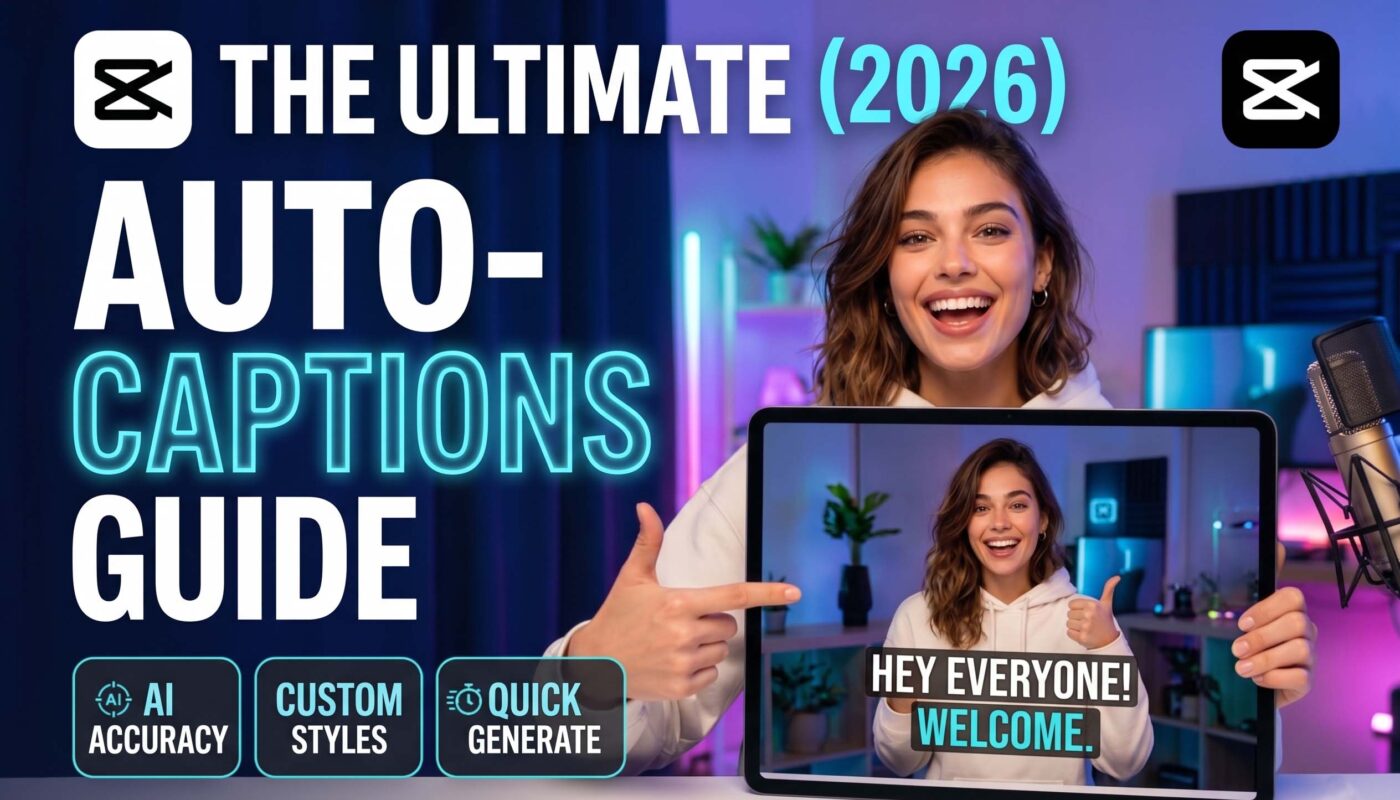
by Creating engaging videos is only half the job. Helping people understand them is just as important. That’s where CapCut Auto Captions: Complete Guide (2026) comes in. Whether you create content for TikTok, YouTube, or Instagram, captions improve accessibility, increase watch time, and keep viewers engaged even when videos play without sound.
Thanks to CapCut captions, you can quickly turn spoken words into accurate text using advanced AI technology. This guide explains how to use AI captions, improve Speech recognition, and generate professional Video captions with ease. You’ll also discover practical tips, common fixes, and expert techniques to get the best results from CapCut subtitle generator on mobile, desktop, and web.
CapCut Auto Captions: What the Feature Actually Does
CapCut Auto Captions automatically convert spoken words into readable text by using Speech recognition, AI transcription, and Voice-to-text technology. Instead of typing every sentence yourself, the software listens to your video’s audio and creates synchronized captions in just a few moments. This smart Auto caption generator saves valuable editing time while making your videos more accessible.
The entire process depends on cloud processing and server-side processing. After you upload your audio, CapCut analyzes every spoken word through advanced speech recognition technology before returning editable captions. Because everything happens online, a stable internet connection is required. This workflow makes Caption generation much faster than manual typing while improving consistency across different projects.
How AI Speech Recognition Works in CapCut
Behind every caption is intelligent spoken language detection. CapCut first identifies the selected language and then performs Audio transcription using modern speech-to-text AI. Next, it automatically creates Video captions with accurate subtitle synchronization and smooth caption timing. The cleaner your recording sounds, the better your results will be.
Why Auto Captions Require an Internet Connection
Many users ask why the feature cannot work offline. The reason is simple. CapCut performs transcription on remote servers instead of your phone or computer. If your internet connection becomes unstable, you may see caption generation failed or auto caption not working messages before the process finishes.
Supported Platforms (Mobile, Desktop & Web)
One of CapCut’s biggest strengths is flexibility. You can generate captions on CapCut mobile, CapCut desktop, or CapCut web with nearly the same workflow. Whether you prefer a mobile video editor, desktop video editor, or online video editor, your editing experience stays familiar across every platform.
| Platform | Auto Captions | Caption Editing | Subtitle Export |
| CapCut Mobile | Yes | Yes | Limited on some versions |
| CapCut Desktop | Yes | Advanced | Supports more export options |
| CapCut Web | Yes | Advanced | Depends on account and browser |
CapCut Auto Captions Language Support and Accuracy
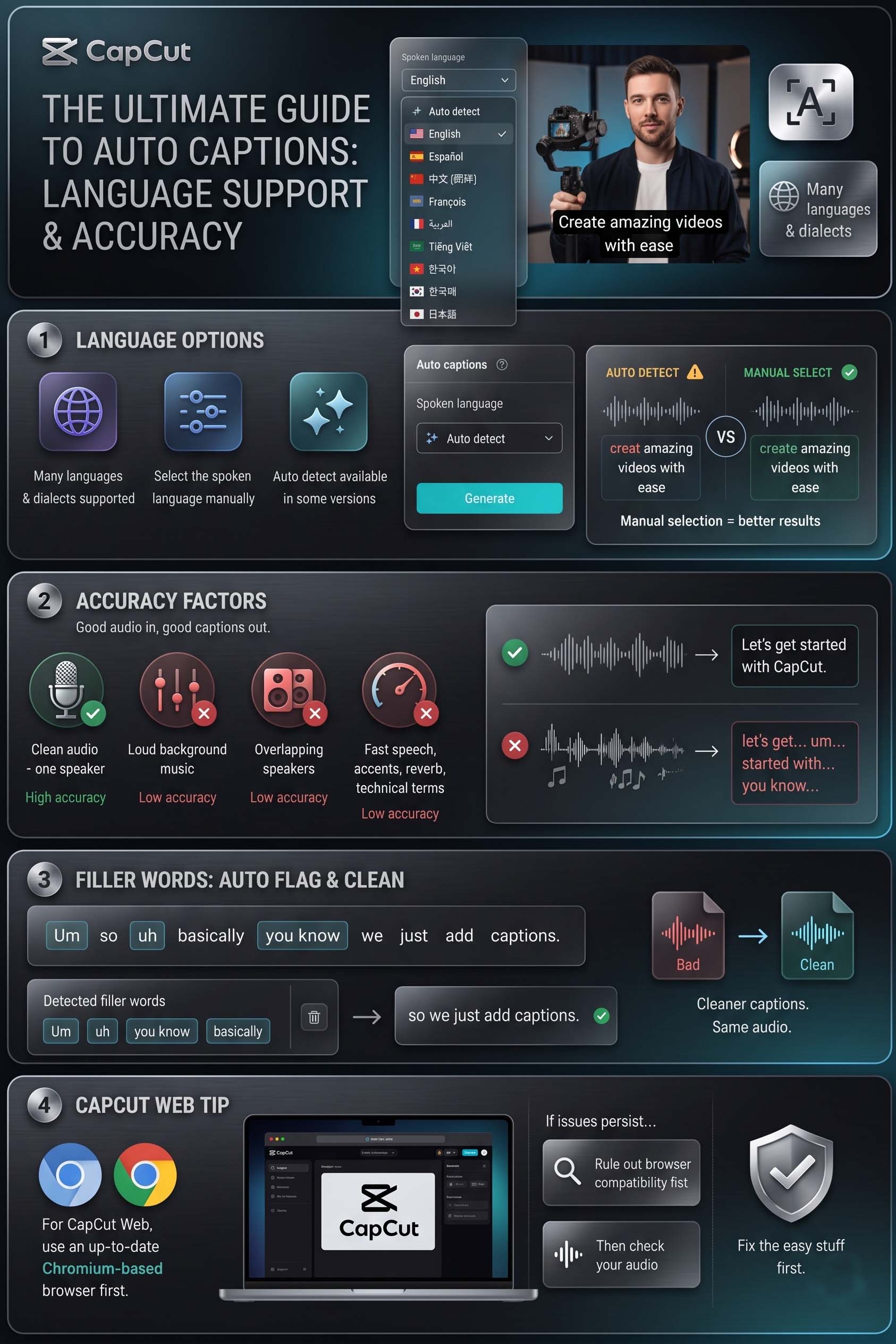
Language support continues to improve every year. The latest versions of CapCut subtitle generator, AI subtitle generator, and Automatic subtitles support many languages and regional dialects. Choosing the correct language manually usually produces better results than automatic detection because the AI understands pronunciation more accurately.
Even the best transcription software makes occasional mistakes. Poor microphone quality, weak audio quality, excessive background noise, strong regional accents, audio reverb, and overlapping speakers can reduce Caption accuracy. Fortunately, most errors are easy to fix with a quick review before exporting your project.
Supported Languages and Dialects
CapCut supports dozens of spoken languages across different regions. Before generating captions, always check your language selection carefully. Choosing the correct option helps the AI understand your speech and significantly improves CapCut caption accuracy, especially when your content includes unique names or technical vocabulary.
What Affects Caption Accuracy?
Imagine talking to a friend inside a noisy restaurant. They will probably miss a few words. AI works the same way. Too much background noise, poor voice clarity, frequent filler words, or unclear speech makes transcription harder. Recording in a quiet environment produces cleaner captions and reduces the need for manual caption correction.
Tips to Improve Speech Recognition Results
Start by recording with a good microphone and speak naturally without rushing. Keep music volume low during recording and avoid echo whenever possible. These simple habits improve clear voice recording, reduce editing time, and help you improve CapCut caption accuracy with very little extra effort.
| Recording Quality | Expected Results |
| Quiet room with one speaker | Excellent |
| Light background music | Very Good |
| Two speakers talking | Good |
| Loud music and echo | Fair |
| Heavy traffic or wind | Poor |
CapCut Captions vs Subtitles: What’s the Difference?
Many creators believe captions and subtitles are identical. They are similar, yet they serve different purposes. CapCut captions are usually generated automatically from your video’s speech, while subtitles can also come from an imported Subtitle file. Understanding this difference helps you choose the best workflow before editing begins.
Your publishing platform also matters. Some creators only need Burned-in captions for short social videos. Others prefer editable Closed captions because viewers can switch them on or off. Learning when to use each format will improve your overall video editing workflow and make your content easier to manage.
Auto Captions vs Imported Subtitle Files
Auto captions are created directly from spoken audio using caption recognition and AI captions. Imported subtitles use an existing SRT subtitle format or TXT subtitle format that someone has already prepared. Many editors use this approach when working with translators or professional transcription services.
Open Captions vs Closed Captions
Open captions become part of the video itself and remain visible at all times. Closed captions stay separate from the video, allowing viewers to turn them on or off whenever they choose. Both formats improve accessibility, although each works best for different publishing platforms.
Which Option Is Best for YouTube, TikTok, and Reels?
Short-form platforms usually perform better with Animated captions, modern Caption effects, attractive Caption styling, and engaging Caption templates because viewers immediately notice moving text while scrolling. Long videos often benefit from YouTube subtitles, Accessibility captions, Subtitle translation, Bilingual captions, Multilingual captions, and a professional Subtitle workflow that supports audiences around the world.
CapCut Auto Captions Free Plan vs Pro: What’s Actually Restricted?
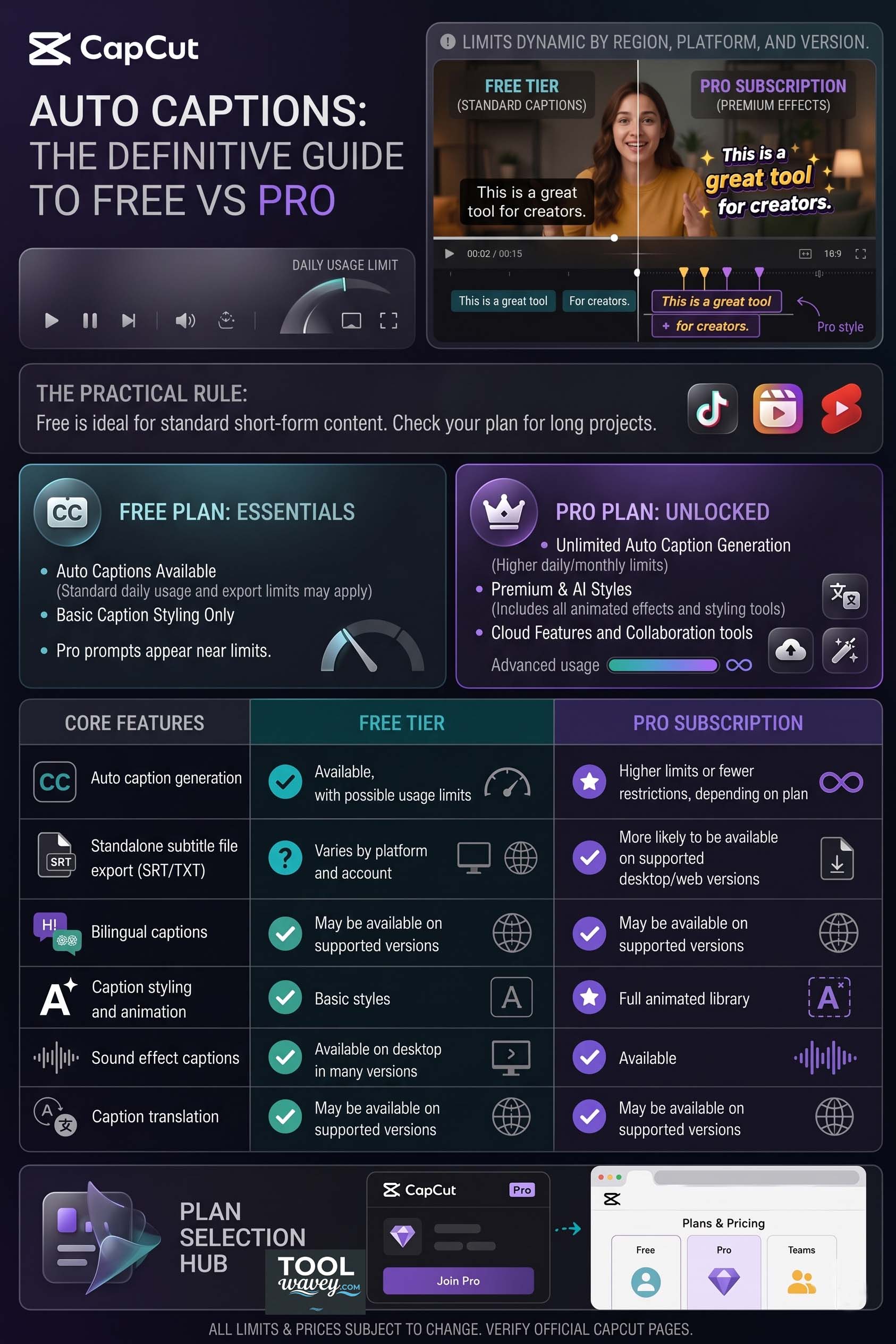
Many creators ask are CapCut auto captions free before they begin editing. The answer is yes for most users, but some features depend on your subscription, device, region, and app version. This CapCut Auto Captions: Complete Guide (2026) recommends checking your available tools before starting a large project because premium features can change over time. If you only create short videos, the free version is often enough.
The paid version unlocks more creative freedom. You get access to advanced Caption templates, premium Animated captions, enhanced Caption styling, and additional AI tools that speed up your editing process. Professional creators also benefit from expanded cloud storage, better collaboration features, and more export options. If content creation is part of your business, upgrading may be a worthwhile investment.
Features Available on the Free Plan
The free plan includes the CapCut subtitle generator, Auto caption generator, CapCut AI caption generator, and basic caption editing tools. You can generate Automatic subtitles, adjust Video captions, change font styling, and create engaging social media captions for TikTok, Instagram, Facebook, and YouTube without paying for a subscription.
What CapCut Pro Unlocks
CapCut Pro adds premium Caption effects, advanced caption customization, improved subtitle formatting, exclusive Caption templates, and extra AI-powered editing tools. Depending on your account, you may also receive enhanced subtitle export options, faster cloud processing, and more resources for professional video production.
Free vs Pro Comparison Table
| Feature | Free Plan | Pro Plan |
| CapCut captions | ✔ Available | ✔ Available |
| AI captions | ✔ Available | ✔ Available |
| Premium Caption templates | Limited | Full Access |
| Animated captions | Basic Library | Premium Library |
| Caption styling | Basic | Advanced |
| Caption effects | Limited | Complete Collection |
| Subtitle export | Depends on version | More export options |
| Cloud Storage | Limited | Expanded |
| AI Editing Tools | Basic | Advanced |
CapCut Auto Captions Step-by-Step: Mobile Workflow
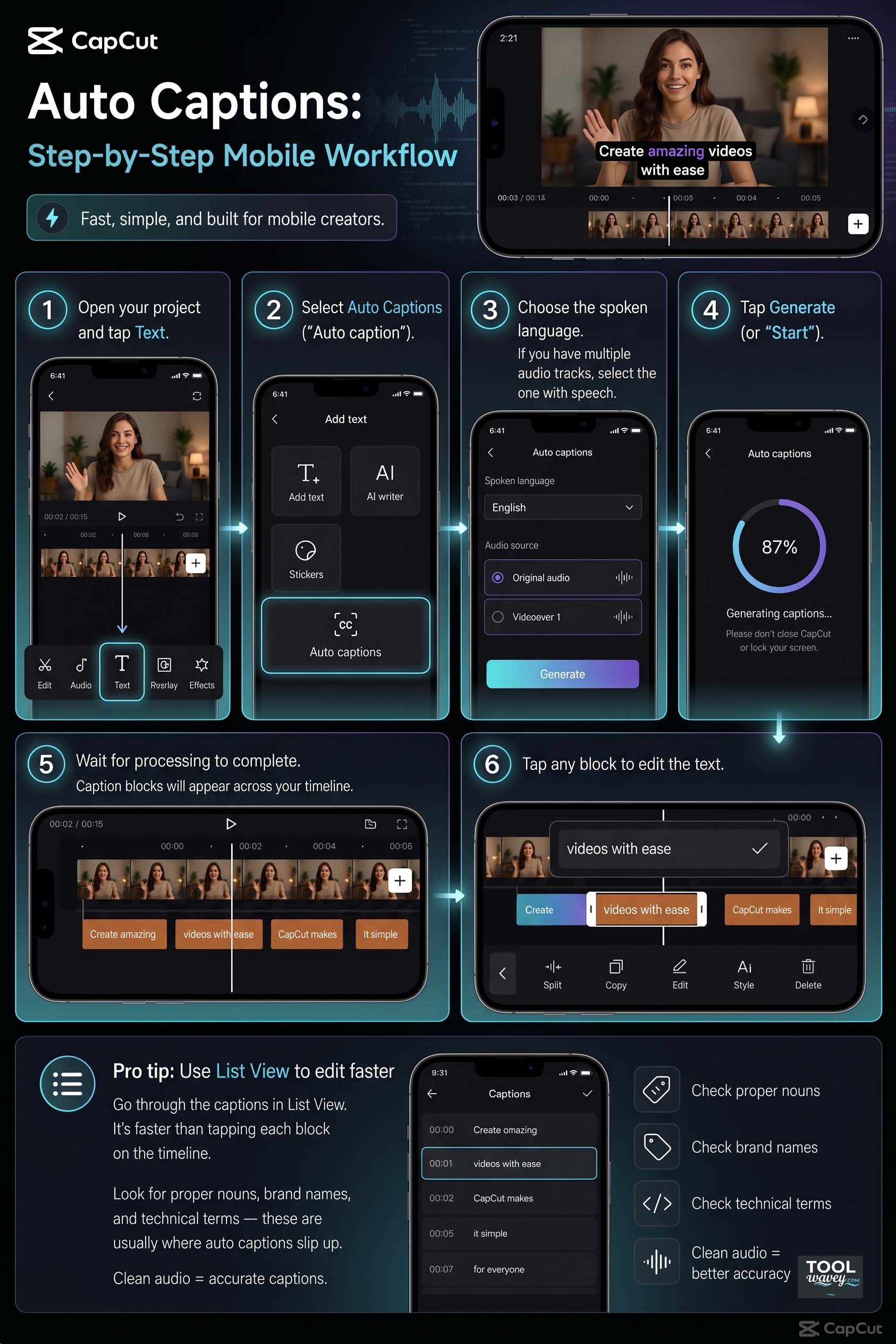
If you edit videos on your phone, you’ll appreciate how simple CapCut makes caption creation. Whether you use Android or iPhone, the process takes only a few minutes. If you are searching for how to generate captions in CapCut, the mobile app offers one of the fastest solutions available today. This section of CapCut Auto Captions: Complete Guide (2026) walks you through the complete workflow.
Before tapping the Generate button, take a moment to review your recording. Good microphone quality, strong audio quality, and a reliable internet connection make a huge difference. Think of it like baking a cake. Better ingredients usually produce a better result. The same idea applies to AI transcription.
Generate Auto Captions on Android
Open your project inside CapCut mobile, tap the Text option, and choose Auto Captions. Select the correct language before starting speech-to-text AI processing. This simple CapCut speech recognition tutorial helps the software understand your recording more accurately and improves overall caption recognition from the very first scan.
Generate Auto Captions on iPhone
The iPhone process follows almost the same steps. Import your video, open the Text menu, select Auto Captions, choose your language, and begin transcription. If you have been searching how to add subtitles in CapCut, this method creates professional TikTok captions, Instagram Reels captions, and YouTube Shorts captions with very little effort.
Edit and Customize Mobile Captions
Once your captions appear, review each sentence carefully. Correct names, numbers, and technical words before exporting. Next, improve caption timing, refine subtitle synchronization, apply attractive Caption styling, and add engaging animated text that matches your brand. Spending a few extra minutes here makes your final video look far more professional.
| Mobile Workflow | Why It Matters |
| Select the correct language | Improves AI recognition |
| Use clear audio | Reduces editing time |
| Review generated captions | Fixes spelling mistakes |
| Adjust caption timing | Improves readability |
| Apply one style to all captions | Saves editing time |
| Preview before export | Catches final errors |
CapCut Auto Captions Step-by-Step: Desktop Workflow
Desktop editing gives you greater precision and more control over every caption. If you create podcasts, tutorials, online courses, or business presentations, CapCut desktop offers a smoother editing experience than most mobile devices. Larger screens make it easier to manage long projects while keeping your video editing workflow organized.
Another advantage is flexibility. Desktop tools allow you to review every caption block in detail, fine-tune timing, and perform detailed edits before exporting. This workflow is especially useful for creators producing long-form YouTube captions, educational videos, or multilingual content that requires careful proofreading.
Generate Captions on Windows & Mac
Import your video into CapCut desktop, place it on the timeline, and open the Text panel. Choose Auto Captions, select your language, and begin AI transcription. The software uses voice recognition and cloud-based speech recognition to analyze your audio before creating editable captions across the timeline.
Edit Caption Timing and Text
Desktop editing makes manual caption correction much easier. You can split long sentences, merge short captions, improve subtitle timing, and perform detailed caption editing without changing the original video. These professional tools help create smoother viewing experiences and improve readability.
Export Burned-In Captions and SRT Files
After reviewing your captions, choose whether to export Burned-in captions or a separate Subtitle file. Many desktop versions also support export SRT from CapCut, CapCut subtitle file export, and TXT subtitle creation. If you are wondering how to export subtitles from CapCut, the desktop application usually offers the most flexible export settings.
| Export Option | Best Use Case |
| Burned-in captions | TikTok, Instagram Reels, Facebook, YouTube Shorts |
| SRT subtitle format | YouTube, Vimeo, online courses |
| TXT subtitle format | Editing in third-party software |
| Separate Subtitle file | Multilingual publishing and accessibility |
CapCut Auto Captions Styling: Making Them Look Good
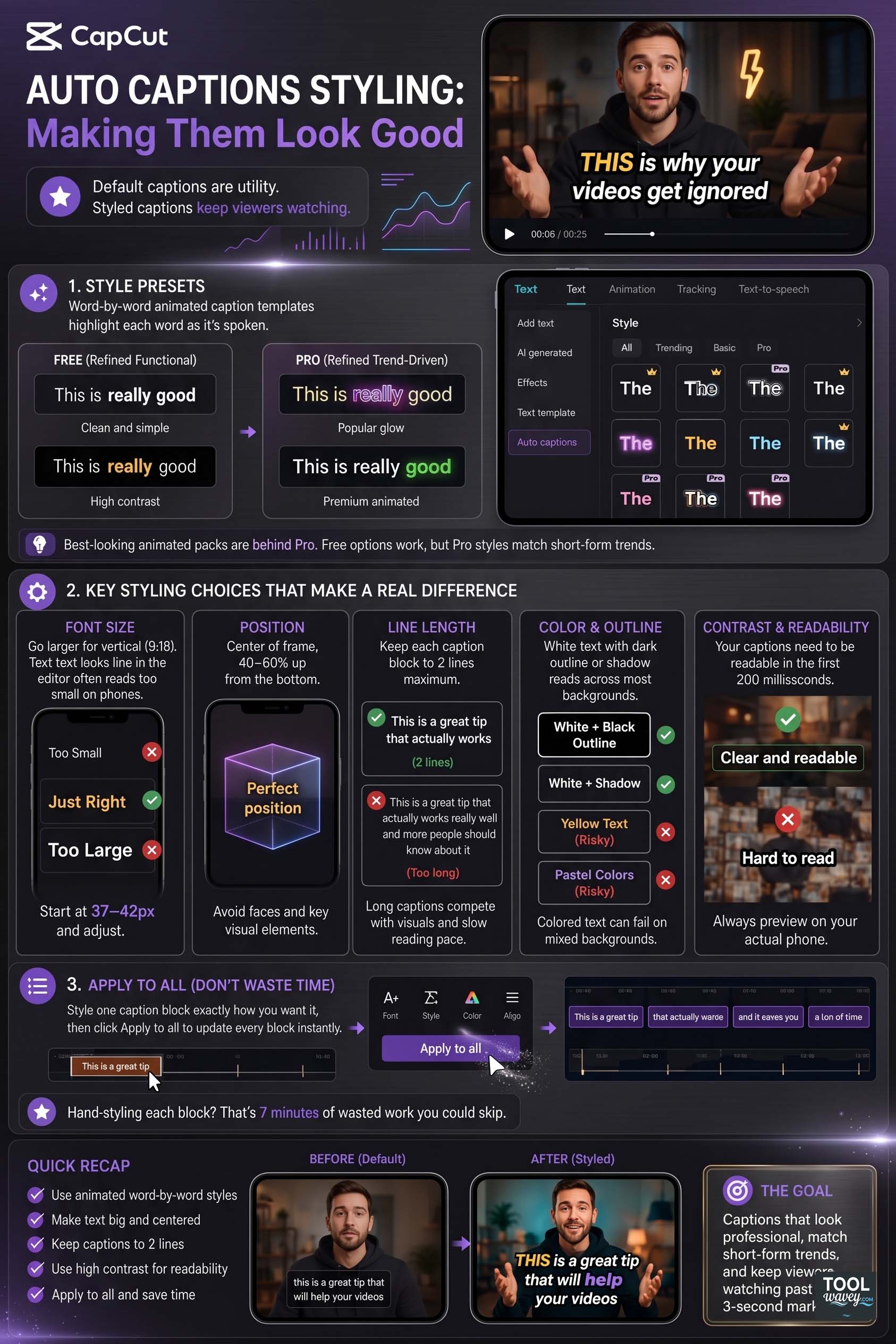
Great captions do more than display words. They guide the viewer’s eyes and keep attention focused on your message. This section of CapCut Auto Captions: Complete Guide (2026) shows how small design choices can dramatically improve watch time. Clean Caption styling, readable fonts, and smooth animations often make the difference between a skipped video and one that people watch until the end.
Think of captions as road signs on a busy highway. If they are difficult to read, viewers quickly lose interest. Modern Caption templates, eye-catching Caption animation, and subtle Caption effects make your content easier to follow without distracting from the video itself. The goal is to support your message rather than compete with it.
Best Fonts for Social Media Videos
Simple fonts almost always perform better than decorative ones. Use bold, clean lettering that remains readable on small screens. White text with a dark shadow improves visibility across different backgrounds. Combining professional font styling with clear spacing creates polished social media captions that work well on every platform.
Caption Colors, Size, and Position
Choose colors that contrast with your video. White or yellow text with a dark outline usually delivers excellent readability. Position captions near the bottom center while keeping them above important on-screen elements. This approach improves Accessibility captions and makes your content comfortable to watch on both phones and computers.
Apply Animation and Templates
Motion naturally attracts attention. Gentle Animated captions and smooth animated text help viewers follow every sentence without feeling overwhelmed. CapCut also offers ready-made Caption templates that maintain consistent branding across your videos while reducing editing time.
Styling Tips to Increase Viewer Retention
Keep each caption short enough to read comfortably. Split long sentences into smaller blocks and maintain consistent caption timing throughout the video. Avoid excessive colors or flashy animations because they distract viewers. Well-balanced subtitle formatting improves readability and encourages audiences to stay engaged until the final second.
| Styling Element | Best Practice |
| Font | Bold and easy to read |
| Text Color | White or yellow with dark outline |
| Position | Lower center without covering faces |
| Animation | Smooth and subtle |
| Caption Length | One or two short lines |
| Consistency | Apply one style across the project |
CapCut Auto Captions Accuracy Problems: What Actually Fixes Them
Even advanced AI occasionally makes mistakes. You may notice missing words, incorrect spelling, or delayed captions after transcription. Fortunately, most issues have simple solutions. This section of CapCut Auto Captions: Complete Guide (2026) explains how to solve the most common problems before they affect your final video.
Many creators assume the software is at fault when captions look inaccurate. In reality, poor recordings cause most errors. Weak audio quality, excessive background noise, unclear pronunciation, or incorrect language selection often reduce transcription quality. Improving your source audio usually delivers better results than repeatedly generating captions.
Auto Captions Not Generating
If CapCut auto captions not generating becomes a recurring problem, first check your internet connection because the feature depends on cloud processing. Next, restart the app, update to the latest version, and reopen your project. These simple steps solve many common caption generation failed errors.
Wrong Words or Missing Text
If captions contain incorrect words, review your original recording before blaming the AI. Low voice clarity, overlapping speakers, and unclear pronunciation often confuse speech recognition technology. Performing manual caption correction after generation usually takes only a few minutes and significantly improves the final result.
Background Noise Issues
Music, traffic, wind, and echo all reduce transcription quality. Recording in a quiet location with clear voice recording and good microphone quality helps the AI separate speech from unwanted sounds. Lowering background music before generating captions also improves caption recognition.
Language Detection Problems
Choosing the wrong language causes surprisingly large errors. Always verify your spoken language detection settings before generating captions. Even regional variations may affect results. Selecting the correct option improves CapCut caption accuracy and reduces editing later.
Server Errors and Connection Fixes
Occasionally, CapCut servers become busy during peak hours. If you receive an auto caption not working message, wait a few minutes before trying again. Keeping the application updated also ensures compatibility with the latest speech-to-text AI improvements.
| Common Problem | Recommended Solution |
| Captions not generating | Check internet and restart CapCut |
| Wrong language | Select the correct language manually |
| Missing words | Improve recording quality |
| Delayed captions | Adjust subtitle timing manually |
| Poor accuracy | Reduce background noise and regenerate |
CapCut Auto Captions Export: Burned-In vs Subtitle File
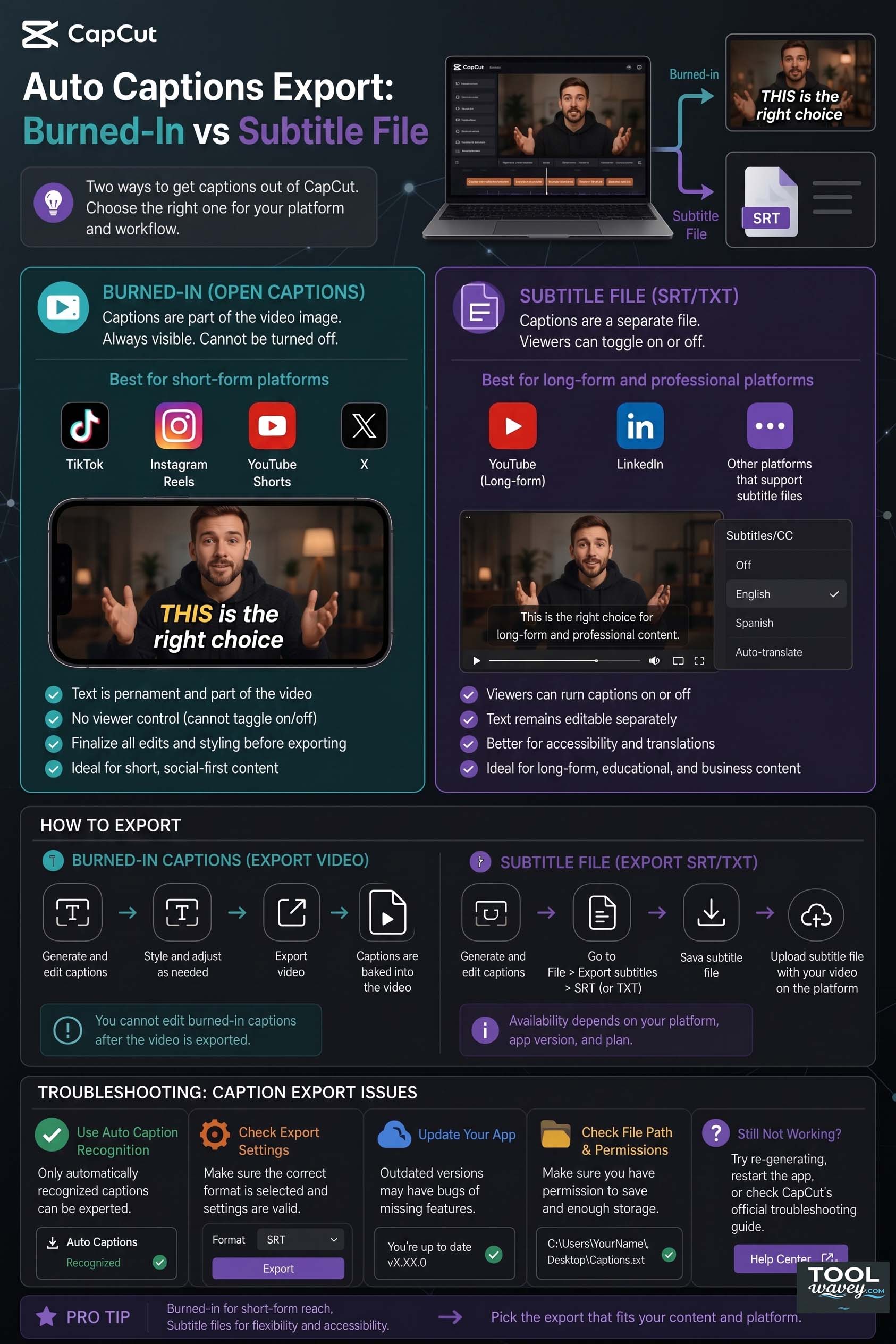
Exporting captions is the final step before publishing your video. The best option depends on where your audience watches your content. This CapCut Auto Captions: Complete Guide (2026) recommends understanding each export type before rendering because changing caption formats later can require additional editing.
Most creators choose between Burned-in captions and a separate Subtitle file. Each format offers unique advantages. Burned-in text becomes part of the video forever, while subtitle files remain editable and can be enabled or disabled by viewers. Choosing wisely saves time and improves accessibility.
When to Export Burned-In Captions
Burned-in captions work best for TikTok, Instagram Reels, Facebook videos, and YouTube Shorts captions because viewers immediately see the text while scrolling. Since these captions become part of the video itself, you should carefully review every word before exporting.
How to Export SRT Files
If you need editable subtitles, export an SRT subtitle format instead. Many creators use this method for YouTube subtitles, online courses, and client projects. Learning how to export subtitles from CapCut and export SRT from CapCut gives you greater flexibility when publishing across multiple platforms.
Best Export Settings for YouTube, TikTok & Instagram
Choose the highest available video quality before exporting. Double-check subtitle export, review subtitle synchronization, and confirm there are no spelling mistakes. If you create multilingual content, consider adding Subtitle translation, Bilingual captions, or Multilingual captions before publishing. This extra step makes your videos accessible to a much larger audience.
| Export Type | Best Platform |
| Burned-in captions | TikTok, Instagram Reels, Facebook, YouTube Shorts |
| SRT subtitle format | YouTube, Vimeo, Online Courses |
| TXT subtitle format | Third-party editors |
| Separate Subtitle file | Accessibility and multilingual content |
CapCut Auto Captions Translation: Bilingual and Multilingual Workflows
Reaching a global audience is easier than ever with CapCut Auto Captions: Complete Guide (2026). After generating captions in your original language, CapCut allows you to translate them into many other languages. This feature helps creators connect with international viewers without recording the same video multiple times. Accurate Caption translation also improves accessibility and increases engagement across different regions.
For the best results, always edit your original captions before translating them. Correcting mistakes first produces cleaner Subtitle translation, more natural Bilingual captions, and accurate Multilingual captions. A polished source transcript helps the AI deliver better translations and reduces the amount of manual editing needed afterward.
Translate Captions into Another Language
After completing your transcript, open the translation tool and choose your target language. CapCut automatically creates a translated caption track while keeping the original timing. This makes CapCut subtitle translation fast and practical for creators producing content for worldwide audiences.
Create Bilingual Captions
Many educational creators display two languages together. CapCut bilingual captions allow viewers to read both the original and translated text at the same time. This approach improves learning, boosts accessibility, and helps multilingual audiences follow your content more comfortably.
Best Practices for Multilingual Content
Review every translated caption before publishing because AI may misunderstand slang or local expressions. Keep sentence lengths short and maintain consistent subtitle synchronization across every language. These simple habits create professional multilingual subtitles that look polished on every platform.
Frequently Asked Questions
Are CapCut auto captions free?
Yes. Most users can generate CapCut captions with the free version. However, premium Caption templates, advanced AI features, and some subtitle export options may require a subscription depending on your account, platform, or region.
How accurate are CapCut auto captions?
For videos with clear voice recording, good audio quality, and minimal background noise, CapCut delivers impressive results. You can further improve CapCut caption accuracy by selecting the correct language and reviewing the generated captions before exporting.
Can I export CapCut captions as an SRT file?
Yes. Many desktop versions support CapCut subtitle export, allowing you to export SRT from CapCut as an editable Subtitle file. Some versions also support TXT subtitle format, although availability depends on your app version.
Do CapCut auto captions work offline?
No. Since the feature relies on cloud-based speech recognition and server-side processing, a stable internet connection is required. If you lose connection during processing, you may experience caption generation failed errors.
How many languages does CapCut auto captions support?
CapCut supports dozens of languages and regional dialects. The available list continues to grow with new updates. Always verify your language selection before generating captions for the highest possible accuracy.
Why did my CapCut auto captions stop working?
The most common causes include an outdated application, unstable internet, incorrect language settings, or temporary server issues. Restarting the app and updating to the newest version often resolves CapCut captions not working and auto caption not working problems.
Can I use CapCut captions on YouTube?
Absolutely. Burned-in captions work well for Shorts, while YouTube subtitles using an SRT subtitle format are ideal for long-form videos because viewers can enable or disable them whenever they choose.
Can I edit auto captions after generating them?
Yes. Every generated caption remains editable. You can change spelling, improve caption timing, perform manual caption correction, and adjust the appearance before exporting your finished project.
Which audio format gives the best caption accuracy?
Videos recorded with a quality microphone and minimal background noise produce the most accurate results. Clear speech is always more important than expensive recording equipment.
Are CapCut auto captions suitable for professional videos?
Yes. Many businesses, educators, marketers, and content creators use CapCut AI transcription tool because it combines speed with reliable accuracy. A quick proofreading session usually produces professional-quality captions.
Comparison Table
| Feature | CapCut | VEED | Descript | Adobe Express |
| AI captions | ✔ | ✔ | ✔ | ✔ |
| Speech-to-text | ✔ | ✔ | ✔ | ✔ |
| Caption editing | Advanced | Good | Excellent | Good |
| Caption styling | Excellent | Good | Moderate | Good |
| Animated captions | ✔ | Limited | Limited | Moderate |
| Subtitle translation | ✔ | ✔ | ✔ | ✔ |
| SRT export | ✔ | ✔ | ✔ | ✔ |
| Free Version | Yes | Limited | Limited | Yes |
| Best For | Social Media | Marketing | Podcasts | Quick Editing |
Expert Tips
Professional creators rarely publish the first caption draft. They always proofread the transcript before exporting because names, technical terms, and brand names can confuse even the best AI. Taking two extra minutes to review your captions creates a far more polished final video.
Recording quality matters more than editing tricks. A quiet room, a quality microphone, and natural speaking speed dramatically improve caption accuracy. Consistent video editing workflow, simple caption styling, and careful timing also make your videos easier to watch and more enjoyable for viewers.
Captions have become an essential part of modern video creation rather than an optional extra. They improve accessibility, increase viewer retention, and help audiences enjoy your content even when sound is muted. Whether you create tutorials, business videos, or short-form entertainment, CapCut Auto Captions: Complete Guide (2026) provides the tools needed to produce professional results quickly.
The platform continues improving every year through smarter AI, better language support, and faster transcription. By learning how to use these features correctly, you can spend less time editing and more time creating engaging content that reaches a wider audience.
Conclusion
We hope this CapCut Auto Captions: Complete Guide (2026) has helped you understand everything from caption generation to export and translation. With features like CapCut speech-to-text, AI transcription, Automatic subtitles, Caption translation, and advanced styling tools, CapCut has become one of the most powerful caption solutions available for creators.
Start with clear audio, review every caption carefully, and choose the right export format for your platform. Following these simple practices will help you create professional videos that are easier to watch, easier to understand, and more likely to perform well across TikTok, Instagram Reels, YouTube Shorts, and long-form YouTube content.
Also read:
How to Add Motion Blur in CapCut Desktop Free: A Simple Guide for Smooth, Cinematic Edits
How to Easily Reduce Audio Noise in CapCut Desktop for Free (2026 Ultimate Guide)
How to Auto Caption Videos in CapCut Desktop for Free: A Complete CapCut PC Tutorial