 by
by In today’s fast-growing world of content creation, learning how to auto-captain videos in capcut desktop for free has become an essential skill for creators who want faster editing and higher engagement. With CapCut Desktop, you can instantly turn speech into text using the powerful Auto Captions feature, saving hours of manual work.
This process is not only simple but also improves video editing quality and makes your content more professional. By using CapCut auto captions, you can quickly generate accurate subtitles, enhance captions for accessibility, and boost audience retention. Whether you are making YouTube videos or short-form content, this method helps you create clear, readable, and engaging videos without any extra software.
“Good captions do not get in the way. They help the video breathe.”
What how to auto caption videos in capcut desktop for free Really Means
How to Auto Caption Videos in CapCut Desktop for Free: A Complete CapCut PC Tutorial
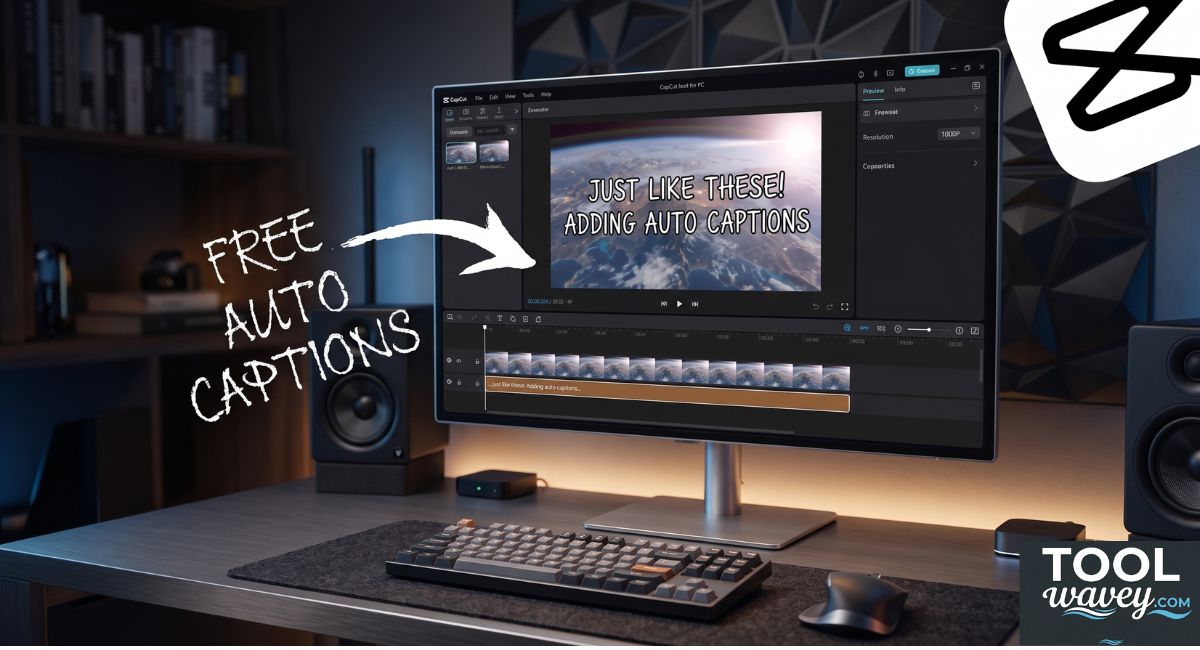
When people search how to auto caption videos in capcut desktop for free, they usually want a fast way to generate subtitles automatically without paying for another tool. In CapCut, the workflow starts with a project, then the Text tab, then Auto Captions, then language choice, then review and editing. That is the core of the auto caption feature.
The best part is that you do not need to treat this like heavy video transcription work. You can let CapCut build the first draft, then you review and edit captions until they look clean. That is why many creators call this the best way to handle CapCut subtitles on a budget.
CapCut desktop app vs manual subtitle work
Manual subtitles take patience. You type every line. You time every line. You move every block by hand. That is fine for tiny clips. However, it feels slow when you publish often. The CapCut desktop app gives you a faster starting point because it can create the caption draft for you.
That matters because creators need speed and clarity. If your audio is clean and your script is simple, CapCut auto captions can get you close to a finished result quickly. Then you only fine-tune the words, the timing, and the style. That is a better use of your time than rebuilding every subtitle from scratch.
Why CapCut auto captions Help Your Videos
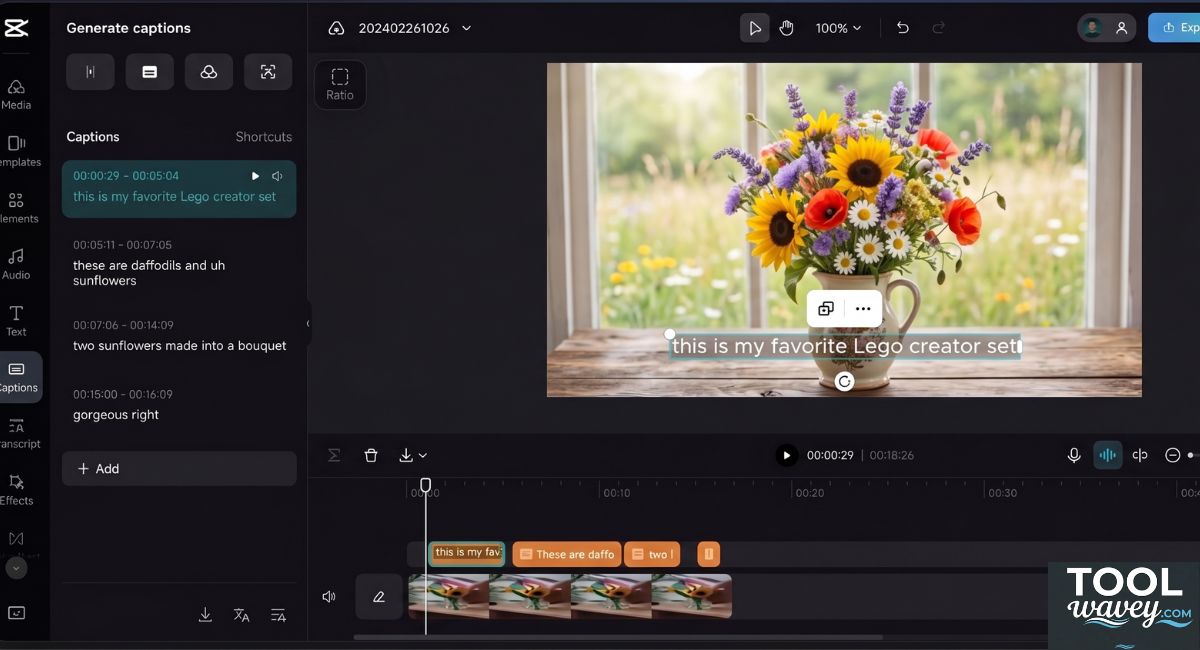
How to Auto Caption Videos in CapCut Desktop for Free
How to Auto Caption Videos in CapCut Desktop for Free: A Complete CapCut PC Tutorial
CapCut auto captions are helpful because they turn spoken words into visible text with very little effort. CapCut’s help and tools pages describe automatic caption generation, editable text, and style controls. That makes the feature practical for creators who want fast results without extra software.
They also improve the viewing experience. Many people skim, mute, or watch in noisy places. So clear captions for accessibility can make your message easier to understand. They can also help your engagement because viewers stay with the content longer when the message is easy to follow.
A simple case study
Imagine a small coffee shop in Texas. It posts short recipe clips every day. Before captions, viewers missed the steps. After using CapCut subtitles, the clips became easier to follow. That simple change made the content feel more polished and more useful. It also made the videos look intentional instead of rushed.
That same idea works for almost any niche. Fitness, beauty, education, product demos, and even AI video ads all benefit from visible text. When the message is clear, the video feels less like noise and more like a conversation.
What You Need Before You Start
Before you add captions in CapCut PC, you need a project with decent audio. Clear speech gives better results than noisy speech. CapCut’s help pages and subtitle tools both show that language choice and audio quality matter when generating captions. Good input usually creates better auto-generated captions.
You should also know where the tools live. In CapCut, the Text tab or Captions area is where you usually begin. Your clip should already be on the Timeline, because the caption tool reads the audio from that project. If you use cloud files, the CapCut Cloud Library can also help you keep assets organized.
| What you need | Why it matters |
| Clean audio | Better Audio clarity helps the captions match speech more closely. |
| Correct language | The wrong language selection can create strange text. |
| Video on the Timeline | CapCut needs the clip in the project before it can read the audio. |
| Time to Review captions | Even good captions need human checking. |
How to Auto Caption Videos in CapCut Desktop for Free Step by Step
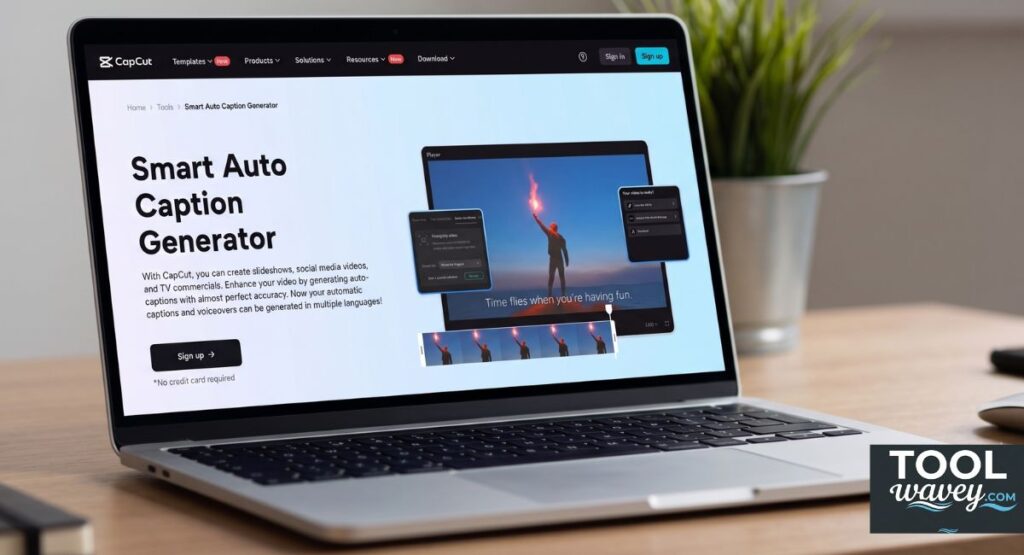
Start by opening the CapCut Desktop app and importing your video. CapCut’s own guide shows the flow clearly: open the project, place the clip on the timeline, then go to Text tab or Captions and choose Auto Captions. After that, pick the language and generate the subtitles.
This is the heart of how to use CapCut auto captions step by step. Once the text appears, you can review and edit captions directly inside the project. That is why many creators use this as their CapCut desktop auto subtitle guide. It is quick, visual, and easy to fix.
How to generate captions in CapCut PC
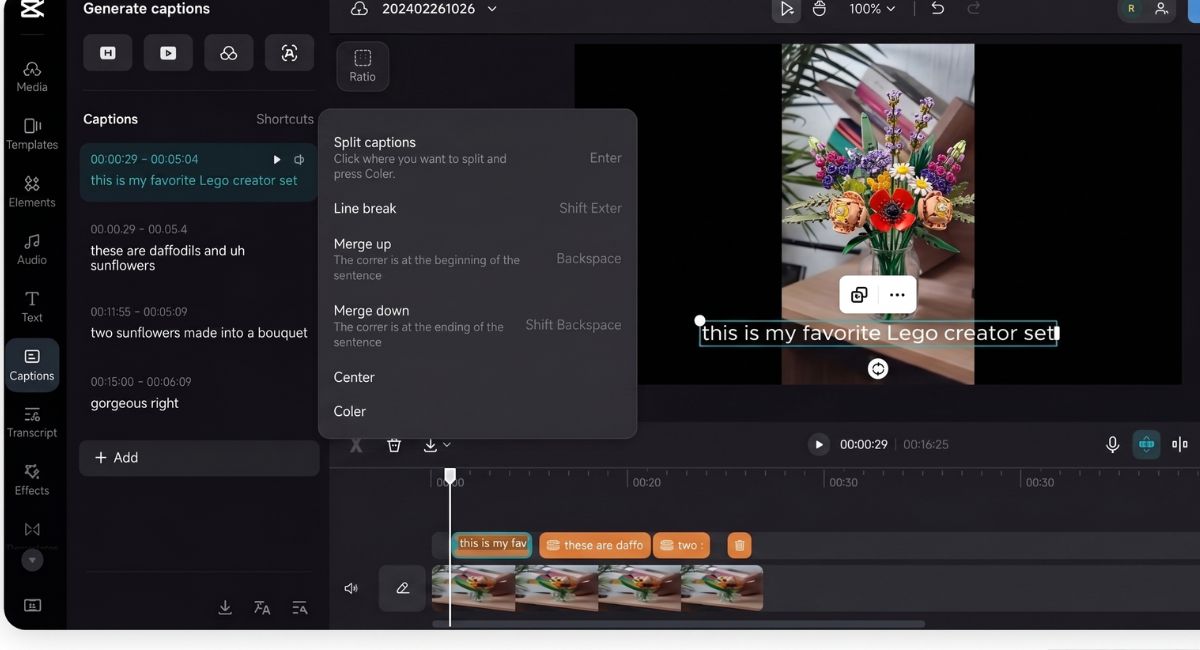
First, create a project and place your clip in the Timeline. Next, open the Text tab and click Auto Captions. Then choose the right Language selection and hit the generate or create button. CapCut will build the first caption draft for you.
After that, do not rush to export. Read the text carefully. Check the pauses. Fix odd wording. This is the step where how to generate captions in CapCut PC becomes a real workflow instead of a guess. The result is much better when you take a few extra minutes here.
How to add auto captions in CapCut desktop
If you want how to add auto captions in CapCut desktop, keep the process simple. Upload the clip, choose Auto Captions, and let CapCut transcribe the audio. Then move through the blocks one by one. This is the point where your draft becomes readable and useful.
You can also use this method for how to add captions in CapCut PC without third-party tools. That is a big win for creators who want fewer apps and a cleaner workflow. It keeps the process inside one place. Less friction. Fewer mistakes. Faster publishing.
How to Edit and Customize Captions in CapCut Desktop
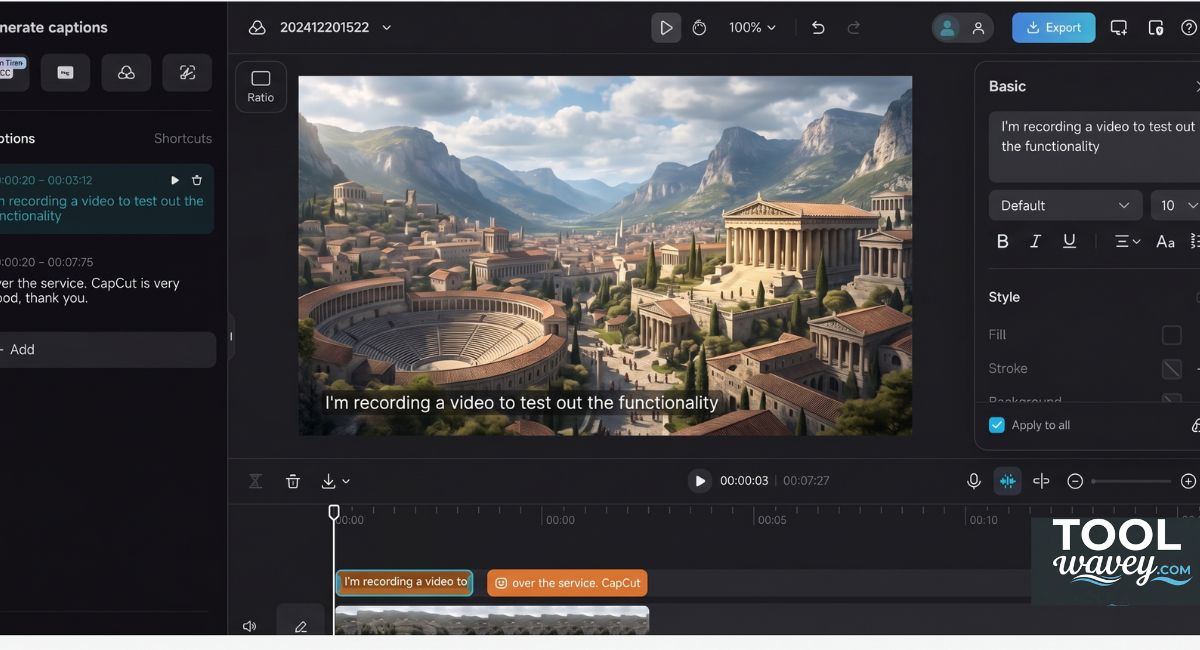
Once the captions are generated, the real polish begins. CapCut allows you to change the text, layout, style, and timing after generation. That is why edit captions in CapCut is such an important skill. Raw captions are useful. Edited captions are better.
This is also where customize caption style comes in. CapCut’s tools let you adjust caption font and size, caption color and alignment, and even the caption background box. These details help your text look clean against the video. They also make your content feel more deliberate.
How to customize captions in CapCut PC
If your goal is how to customize captions in CapCut PC, focus on three things first: readability, contrast, and consistency. Pick a font that is easy to read. Keep the size large enough for mobile screens. Then make sure the color stands out from the background.
You can also add shadow or a background box when the scene is busy. This makes the caption easier to read in bright shots, dark shots, or moving scenes. That is a simple trick, but it often saves a video from looking messy. It is one of the easiest ways to make CapCut desktop captions feel professional.
How to make captions readable in CapCut
The phrase how to make captions readable in CapCut sounds basic, but it matters a lot. Keep line length short. Avoid tiny text. And do not use too many styles in one video. A calm design usually beats a loud one. Viewers notice clarity faster than decoration.
A good rule is to style for the smallest screen first. Many viewers watch on phones. So the caption should still look sharp when the video shrinks. That is where caption font and size and caption color and alignment become more than design choices. They become part of the viewing experience.
How to Keep Timing Clean and Speech Aligned
Great captions are not only about words. They are also about timing. If text arrives late, viewers feel the lag. If it appears too early, the flow breaks. That is why sync captions with audio matters so much in every CapCut PC tutorial.
CapCut supports adjusting subtitle timing after creation. You can split subtitle blocks, edit timing, and fix lines that do not match the spoken audio. This helps when the speaker pauses in strange places or speaks too fast. It also helps with noisy clips that need extra cleanup.
How to sync captions with audio in CapCut
To handle how to sync captions with audio in CapCut, listen to the video while scanning the subtitles. Watch for words that land too late. Then trim or split the block as needed. CapCut’s tools support subtitle splitting and editing, which makes this process practical.
This is also where subtitle timing becomes a creative choice. Fast captions feel sharp. Slow captions feel smooth. The best timing matches the pace of the speaker and the mood of the video. That tiny detail can make the whole edit feel more alive.
Common Problems and Easy Fixes
Sometimes how to fix CapCut auto captions not working is the real question. When captions fail to appear, CapCut recommends checking the project, the language, the app, and the internet connection. That is usually enough to solve the most common issues.
Style problems can happen too. Sometimes a change does not apply to every block. CapCut’s help pages explain that global style updates may need a fresh apply-to-all action, and cache issues can also interfere with display. That is why a calm troubleshooting pass is often better than frantic clicking.
| Problem | Simple fix |
| Captions do not appear | Recheck the project, language, and internet connection. |
| Timing looks off | Split or adjust the blocks. |
| Style changes do not stick | Reapply the style and clear cache if needed. |
| Text feels inaccurate | Edit the words by hand after generation. |
How to improve CapCut auto caption accuracy
If you want how to improve CapCut auto caption accuracy, the answer starts before the caption tool even opens. Use clean narration. Reduce background noise. Speak at a steady pace. CapCut’s help pages also show that choosing the right language matters a lot.
After generation, always check the text line by line. Auto captions are helpful, but they are not magic. They are a first draft. A human pass makes the final result much better. That is the real difference between rough auto-generated captions and polished ones.
Best Ways to Use Captions in Real Content
The best way to use this feature is to match it with the content type. How to add subtitles for YouTube Shorts in CapCut is not exactly the same as long-form tutorial editing. Shorts need bold, fast, readable text. Tutorials need calm pacing and clear structure. Both benefit from smart caption work.
The same logic applies to how to add captions for TikTok videos in CapCut. Short videos move fast. So the text must be easy to scan. If the viewer understands the message in one glance, the caption is doing its job. That is true whether you are making entertainment clips, education videos, or AI video ads.
Mobile and desktop editing
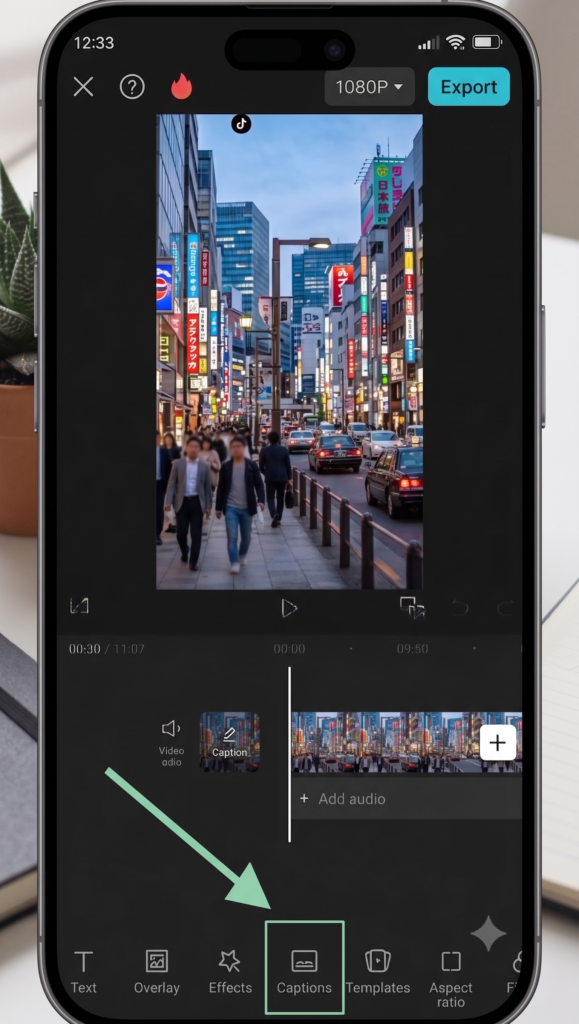
Many creators switch between phone and computer. That is where mobile and desktop editing helps. CapCut supports desktop and mobile workflows, and its ecosystem is built for different screens and different habits. You can start on one device and continue on another when your workflow demands it.
For the desktop side, this guide is the cleaner path. It is especially useful for people who search CapCut PC auto captions tutorial or best way to add auto captions in CapCut desktop. It gives you more room to edit. More control. Less finger-cramping. That alone makes desktop editing feel easier.
How to Change Video Background in CapCut Desktop Without Green Screen (Easy 2026 Guide)
Final Thoughts on how to auto caption videos in capcut desktop for free
If you remember one thing, remember this. how to auto caption videos in capcut desktop for free is really about speed, clarity, and control. CapCut gives you a free desktop workflow, automatic caption generation, and tools to refine the final look. That is a strong mix for creators who want a fast result without extra apps.
So start with clean audio. Generate the captions. Then edit the text, timing, and design until it fits your video. That is the whole game. When you do it well, your content looks sharper, your message lands faster, and your viewers stay longer. That is the practical value of CapCut auto captions.
FAQs About CapCut subtitles and Auto Captions
Can you get auto captions on CapCut for free?
Yes, CapCut offers free auto captions in both Desktop and Mobile using its built-in Auto Captions feature.
How to add auto captions on CapCut desktop?
Open CapCut Desktop, import your video, go to Text tab, select Auto Captions, choose language, and generate subtitles.
How do I auto caption my video for free?
Use CapCut’s free Auto Captions tool, then review and edit the generated subtitles.
How do I auto caption my video for free?
Just upload your video in CapCut and apply Auto Captions to instantly create subtitles without extra software.
How to add captions in CapCut without Pro?
Use the free Auto Captions feature in CapCut, then customize and export your video normally.