 by
by Learning how to make a transparent background in Canva free is one of the easiest ways to create clean, professional-looking designs without advanced editing skills. Whether you’re designing a logo, product image, social media graphic, or website banner, a transparent background helps your visuals blend seamlessly into any layout.
This guide explains how to make a background transparent in Canva using simple steps that anyone can follow. You’ll also discover when to use a PNG transparent background, how the background remover in Canva works, and the best free alternatives if premium features aren’t available. By the end, you’ll confidently create a polished Canva transparent background for any project in minutes.
What Is Transparent Background in Canva Free?
What is transparent background in Canva? It is a background with no solid color layer behind your subject. That means your logo, product, or cutout can sit on top of another image, a colored page, or a website header without an ugly white block around it. Canva’s PNG and background-remover pages both point to PNG as the best format for this kind of result. ite background vs transparent background** becomes obvious. A white background looks fine on one page. However, it can look clumsy on dark websites or patterned layouts. A transparent one feels like the design belongs there. That is why how to make a background transparent in Canva is such a useful skill for logos, product images, and social posts. a transparent background in Canva in 6 steps**
Open Canva and upload your image. Then use background remover in Canva by selecting the photo and choosing BG Remover or Background Remover. Canva’s help shows that the edited image can be downloaded as a PNG with transparency. That is the cleanest path for how to make a transparent background in canva free when you are preparing a cutout for reuse. Transparent Background in Canva Free?
Here is the honest answer. Canva’s official help says the transparent-background download option is premium, which means it sits behind Canva Pro transparent background access. At the same time, Canva also says some background-removal actions can be tried once for free, and PNG is the correct export format once the background is removed. arent background** is possible in a free workflow only if you remove the background first and export the result the right way. That may mean using Canva’s one-time free remover, or it may mean using another tool first and then bringing the PNG back into Canva. That is the practical reality behind Canva Pro vs free transparent background. Free Canva Pro
| Remove image background | Limited free try on some tools | Full access through background remover |
| Download transparent background | Premium feature | Included |
| Best export format | PNG after background removal | PNG with transparent background |
| Best for logos and cutouts | Works with a free workaround | Easier and faster overall |
A lot of people search does Canva have transparent backgrounds because they expect one click and done. The truth is a little more nuanced. Canva does support transparent-background output, but the direct export button is part of the paid plan. That is why how to make transparent background in Canva with existing image often needs a workaround in the free version. Transparent Background in Canva Free
A transparent cutout saves time every time you reuse it. You can place it on ads, thumbnails, banners, and mockups without rebuilding the design from scratch. That is why transparent background in Canva for logos and images is such a powerful trick for small businesses, creators, and Etsy-style product sellers. utting neat cardboard shapes instead of keeping them inside a box. The image becomes portable. It moves well. It feels less crowded. In a simple transparent background Canva tutorial, that portability is the real win. It makes your brand look tidier and more flexible.
“Clean edges make the whole design feel more expensive.”
How to Make a Transparent Background in Canva Free Step by Step
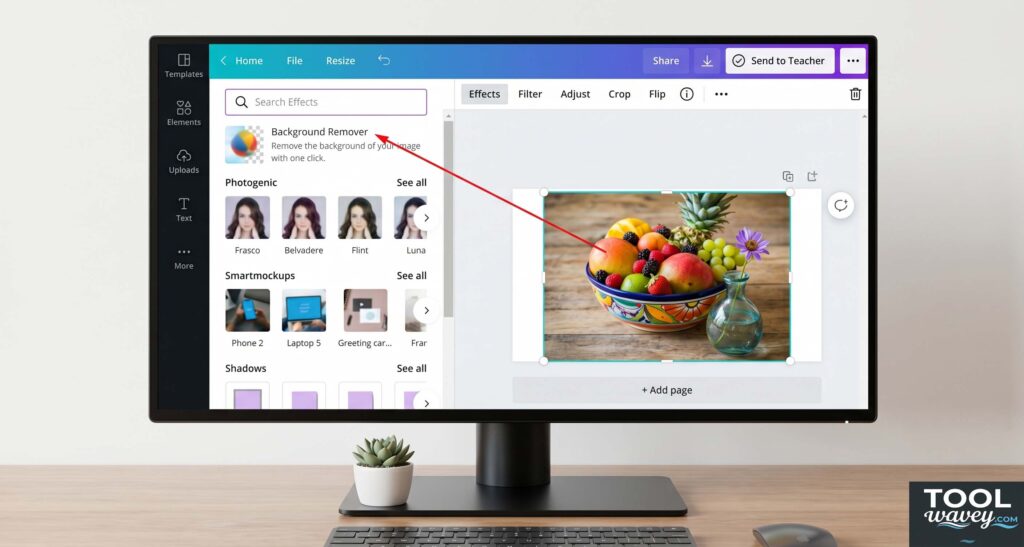
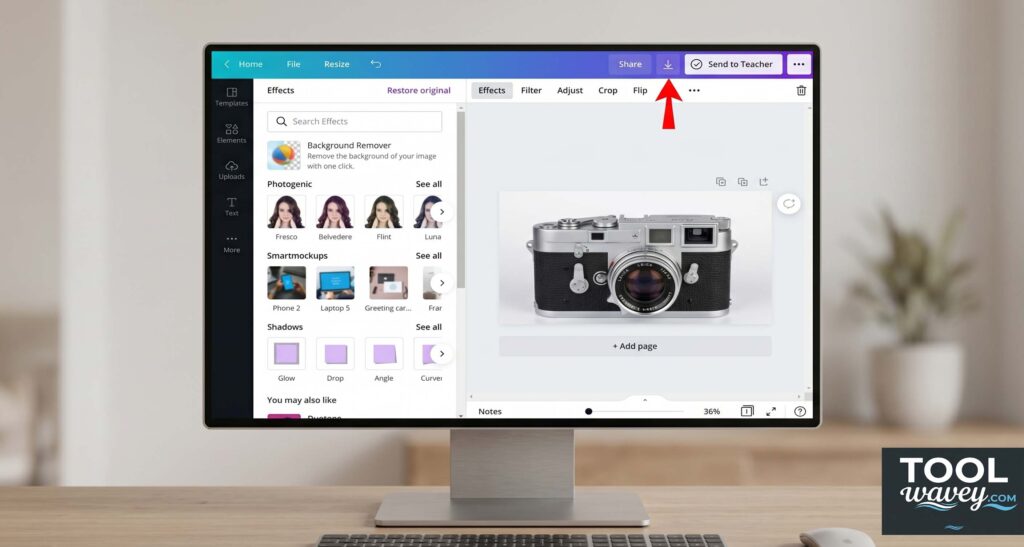
The cleanest transparent background Canva tutorial starts with a photo that has a clear subject. Open your design, upload the image, and choose the background-removal tool if it is available to you. Canva’s help pages show that the workflow centers on BG Remover and PNG export. That is the backbone of how to make a transparent background in canva free. is cut out, check the edges carefully. A good result should not have jagged corners or leftover shadows. Then export as PNG. Canva says PNG is the best file type for transparent backgrounds, and its help pages also explain that transparent-background download is premium. That is why the free path often needs a separate remover first. t a transparent background in Canva**
The safest export rule is simple. Save the finished cutout as a PNG transparent background file. Canva’s own pages say PNG is the best format for transparency, and they show PNG export after background removal. If your image is still saved as JPG, the transparency is gone. ds to Create a Transparent Background in Canva
If you are focused on Canva transparent background for free, the smartest move is to remove the background before final export. Canva’s own help says you can try its white-background remover once for free, and other pages explain that background removal can be used to create a transparent PNG. That gives you a workable free path. te is to use an affordable AI image background remover first and then import the cutout into Canva. That is useful when Canva Free does not give you enough flexibility. You are not replacing Canva. You are simply feeding Canva a cleaner file. That keeps your workflow fast and tidy.
| Method | Best for | Result |
| Canva’s free try | Quick one-time edits | Transparent PNG once |
| External AI remover first | Repeat use on many images | Clean cutout ready for Canva |
| Canva Pro | Frequent design work | Faster and easier workflow |
How to Make a Transparent Background in Canva Free for Logos
A logo should never look boxed in unless that box is part of the brand. That is why how to make logo background transparent in Canva is one of the most searched design fixes. Canva’s logo background remover page says you can upload a logo, tap BG Remover, and make transparent logos in one click. keep your logo simple. Thin text, tiny icons, and fuzzy edges can look weak after removal. A logo with strong shapes usually performs better. This is where Canva logo background transparent files shine. They look professional on websites, stickers, business cards, and social banners. transparent background in Canva with existing image**
Upload the logo or image, remove the background, and then place it onto a new design in Canva. That is the easiest version of how to make transparent background in Canva with existing image. Once the subject is isolated, the logo can sit on any color or photo without a white square around it. ransparent Background in Canva Free on Mobile
Mobile editing is handy when you are working fast. Canva’s help says its background-removal tools are available on desktop and mobile, so the same general workflow applies on your phone. That makes how to make background transparent on Canva mobile much easier than many people expect. n goal is still the same. Remove the background, keep the edges clean, and export the file as PNG if transparency is available. If the in-app export is locked, save the cutout another way and bring it back into Canva. That is the most reliable version of transparent background on Canva mobile. objects transparent in Canva**
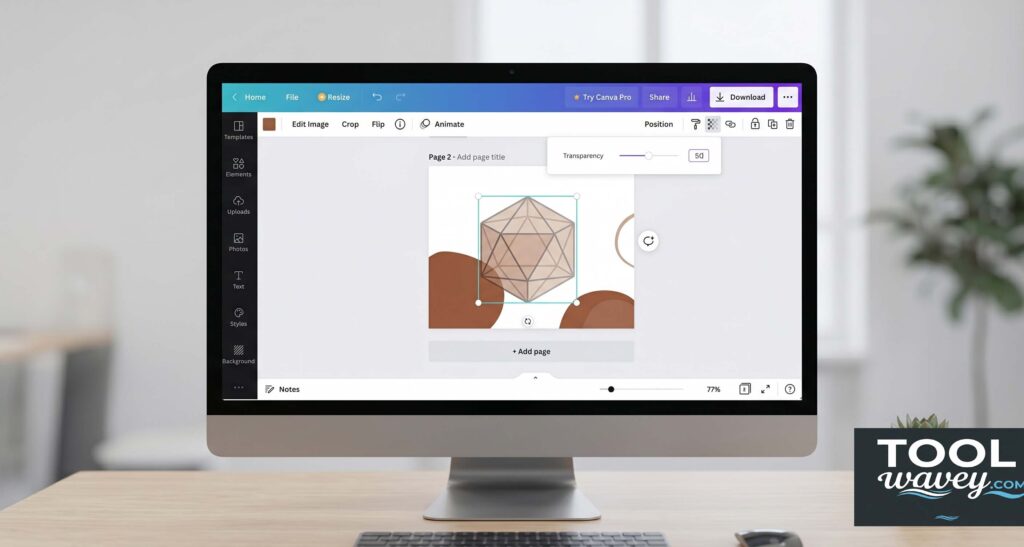
When you are not removing the whole background, you may only want a single object or text layer to fade. That is where Canva’s transparency controls help. Select the element and adjust its opacity. It is useful for watermarks, layered graphics, and subtle overlays. When Making a Transparent Background in Canva Free
The most common issue is a halo around the subject. That usually happens when the cutout is rushed or the source image has weak contrast. Another common problem is a file that still shows a white background after download. That usually means the export format was wrong, or the image was saved as JPG instead of PNG. zoom in before export. Check hair, edges, and corners. If the subject looks soft or muddy, try a better source photo first. A strong input image gives a strong output image. That is the quiet secret behind every solid how to make a transparent background in canva free workflow.
Quick troubleshooting table
| Problem | What it usually means | Better fix |
| White edges | Rough background removal | Use a cleaner source image |
| Blurry cutout | Low-quality photo | Start with a sharper file |
| White background after download | Wrong file type | Export as PNG |
| Missing transparency | Premium option not used | Use a free workaround first |
Best File Format to Use for Transparent Backgrounds
If you only remember one rule, remember this one. PNG is the safest choice for transparency. Canva repeatedly points users toward PNG when they want a transparent result. JPG is better for flat photos with no transparency needs, but it cannot preserve the see-through background effect. to download transparent background in Canva** should always end with a PNG check. If the file is not PNG, it may not stay transparent. A clear file format choice saves you from redoing the whole job later. That small habit saves real time.
| File type | Transparency support | Best use |
| PNG | Yes | Logos, cutouts, overlays |
| JPG | No | Regular photos |
| SVG | Sometimes, depending on source | Vector graphics and logos |
Free Alternatives if Canva Cannot Fully Remove the Background
Sometimes Canva Free does not give enough room to work. That is normal. In that case, a dedicated remover can help. A good best AI background remover for Canva workflow is to clean the image elsewhere first and then return to Canva for layout, text, and branding. That keeps the design flexible.
This is especially useful when you need how to make a transparent background in Canva in 6 steps to happen faster. If the remover is better, use it. If Canva is enough, stay inside Canva. The smartest workflow is the one that gives you a sharp PNG transparent background with the least friction. ransparent Background
what is transparent background in Canva?
It is a background with no solid fill behind the subject. That means the image can sit on top of another design without a visible box. Canva’s background-removal pages and PNG guidance both support this workflow for logos, photos, and product images. transparent background?**
Yes, when the image needs to move across different layouts. It is great for logos, stickers, and product photos. It is less useful when the background is part of the message. For example, a lifestyle banner may need a full backdrop instead of a cutout.
how to download transparent background in Canva?
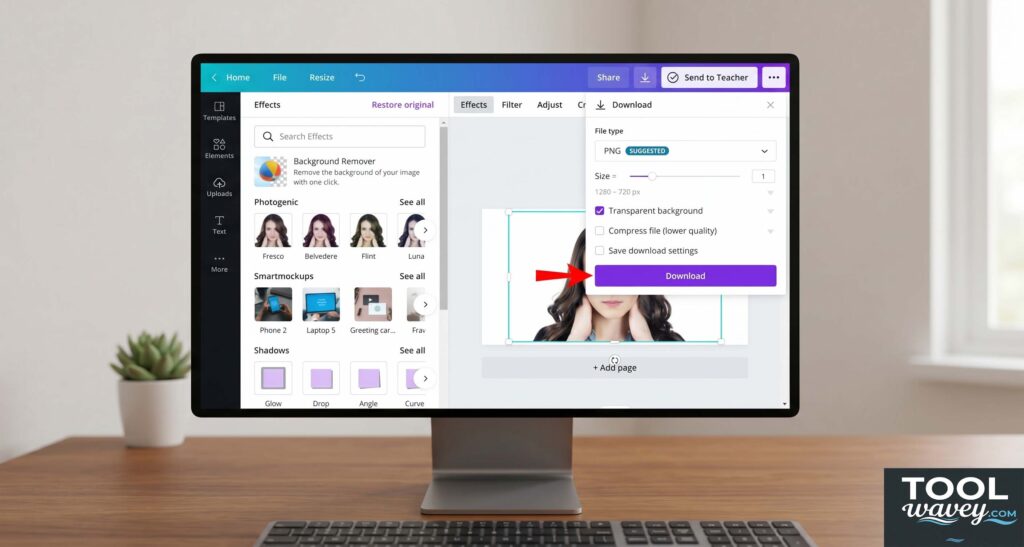
Canva says to choose PNG and tick the transparent-background option. However, its help page also says that direct transparent-background download is premium. That is why the free route usually needs a workaround first. ave transparent backgrounds?**
Yes, but the export feature is premium for direct downloads. Canva also offers background-removal tools and free trial use on some pages. That is the practical answer for anyone asking how to make a transparent background in canva free without paying immediately. on How to Make a Transparent Background in Canva Free
The simplest path is this: remove the background first, then save the image as PNG, then drop it back into Canva. That is the cleanest way to handle how to make a transparent background in canva free without losing quality or control. Canva’s own help pages keep pointing back to BG Remover and PNG for this reason. d that flow, design gets easier. You can build logos, product mockups, and social graphics that feel polished and reusable. That is the real value of how to make a transparent background in canva free. It saves time. It removes clutter. And it makes every design look more intentional.
Conclusion
Learning how to make a transparent background in Canva free can dramatically improve the quality of your designs without requiring advanced editing skills. Whether you’re creating logos, social media graphics, product photos, or marketing materials, a clean Canva transparent background gives your visuals a more professional and polished appearance. Although some transparency features are available only with Canva Pro, you can still achieve excellent results by using free workarounds and exporting a PNG transparent background whenever possible. Understanding how the background remover in Canva works and choosing the right file format will save you time while producing better-looking images. With the techniques covered in this guide, you’ll confidently make background transparent in Canva and create eye-catching designs that look great across websites, presentations, online stores, and social media platforms.
FAQs on Canva Transparent Background
How do I make a transparent background for free?
You can use Canva’s free tools or a free online background remover to erase the background. Save the image as a PNG to keep transparency whenever supported.
Why does Canva not have a transparent background?
Transparent background export is a Canva Pro feature. If you’re using the free version, you’ll need a workaround or a free background removal tool.
How to remove background in Canva without paying?
Use Canva’s available free background removal options if accessible, or remove the background with a free third-party tool before uploading it back to Canva.
Does Canva have a transparency tool?
Yes, Canva includes a Transparency tool that lets you adjust the opacity of images, text, and design elements using a simple slider.
How do I make a background transparent in Canva?
Upload your image, remove the background, and export it as a PNG with the transparent background option if available on your account.
How do I remove the white background in Canva?
Select the image, use the Background Remover to erase the white area, then save the image as a PNG for the best transparent result.
erase the white area, then save the image as a PNG for the best transparent result.
Also read:
How to Add Motion Blur in CapCut Desktop Free: A Simple Guide for Smooth, Cinematic Edits
How to Easily Reduce Audio Noise in CapCut Desktop for Free (2026 Ultimate Guide)
How to Auto Caption Videos in CapCut Desktop for Free: A Complete CapCut PC Tutorial