 by
by Learning How to design a logo in Canva for free is one of the easiest ways to build a strong brand without spending money on expensive software or designers. Whether you own a small business, run a YouTube channel, or launch an online store, Canva provides everything you need to create a professional-looking logo.
The platform offers thousands of logo templates, powerful Canva logo maker features, and simple editing tools that help beginners design with confidence. You can customize colors, fonts, icons, and layouts to match your brand identity. This step-by-step guide will show you how to use Canva logo design tools to create a unique business logo that stands out.
Why Canva Is One of the Best Free Tools for Logo Design
Many beginners choose Canva Free because it removes the complexity often found in traditional design software. The platform combines a powerful graphic design tool with an intuitive drag and drop editor, making it easy to experiment with logo graphics, logo icons, colors, and layouts. Even if you have never worked on a design project before, the interface feels welcoming and straightforward. This is one reason why How to design a logo in Canva for free has become such a popular search term among entrepreneurs and small business owners.
Another major advantage is flexibility. The Canva logo creator, free Canva logo maker, and logo creator tool provide thousands of ready-made Canva templates. These templates cover industries ranging from restaurants and fitness brands to real estate and online businesses. Instead of staring at a blank page, you can begin with professionally designed foundations and modify them to fit your own business logo and logo branding goals.
| Feature | Canva Free | Traditional Design Software |
|---|---|---|
| Easy to Learn | Yes | Often Complex |
| Ready-Made Templates | Thousands | Limited |
| Cloud-Based Access | Yes | Usually No |
| Beginner Friendly | Excellent | Moderate |
| Fast Logo Creation | Very Fast | Time Consuming |
Things to Know Before You Design a Logo in Canva for Free
Before opening the Canva logo maker, take a moment to think about your company personality. Every successful logo starts with a clear brand identity. Ask yourself what message you want customers to remember. A law firm may want trust and professionalism. A bakery may want warmth and friendliness. Your logo should communicate those feelings through colors, shapes, and logo typography. Understanding this early will simplify the entire logo design process.
You should also consider your audience. A logo designed for teenagers often looks very different from one created for corporate clients. Think about your preferred logo colors, logo fonts, and overall style. Choosing these elements beforehand helps you avoid random decisions later. Many businesses rush through this stage and end up redesigning everything. Spending a few extra minutes planning can save hours of work and lead to a stronger visual identity.
Define Your Brand Identity
Your logo acts like the face of your company. When people see it, they immediately form an impression. That is why understanding your brand identity matters so much. Think about your values, mission, and personality. If your company focuses on luxury services, your logo should look elegant. If your brand feels fun and energetic, brighter colors and playful styles may work better.
Choose Your Brand Colors and Fonts
Colors influence emotions more than many people realize. Blue often represents trust. Green commonly reflects growth and nature. Red creates excitement and urgency. Selecting the right color palette helps strengthen recognition. At the same time, your font style should remain readable across websites, social profiles, and printed materials.
Understand Your Target Audience
A logo should appeal to the people you want to attract. For example, a technology startup may prefer sleek modern symbols while a family bakery might choose welcoming imagery. Understanding customer preferences helps you create a custom logo design that feels relevant and memorable rather than generic.
How to Design a Logo in Canva for Free: Step-by-Step Tutorial
If you want to master How to design a logo in Canva for free, begin by creating a Canva account and opening a new logo project. Canva automatically provides recommended dimensions for logo creation. You can also select custom dimensions if you have specific requirements. Once inside the editor, browse available logo templates and choose one that matches your business style. Starting with a template does not mean your logo will look identical to others because extensive logo customization options are available.
After selecting a starting design, focus on personalization. Replace placeholder text with your company name. Adjust colors, fonts, icons, and spacing. Experiment with different design elements until the logo feels balanced. This process forms the foundation of easy logo design in Canva free. Even small adjustments can completely transform a template into a unique and recognizable brand asset.
Create a Free Canva Account
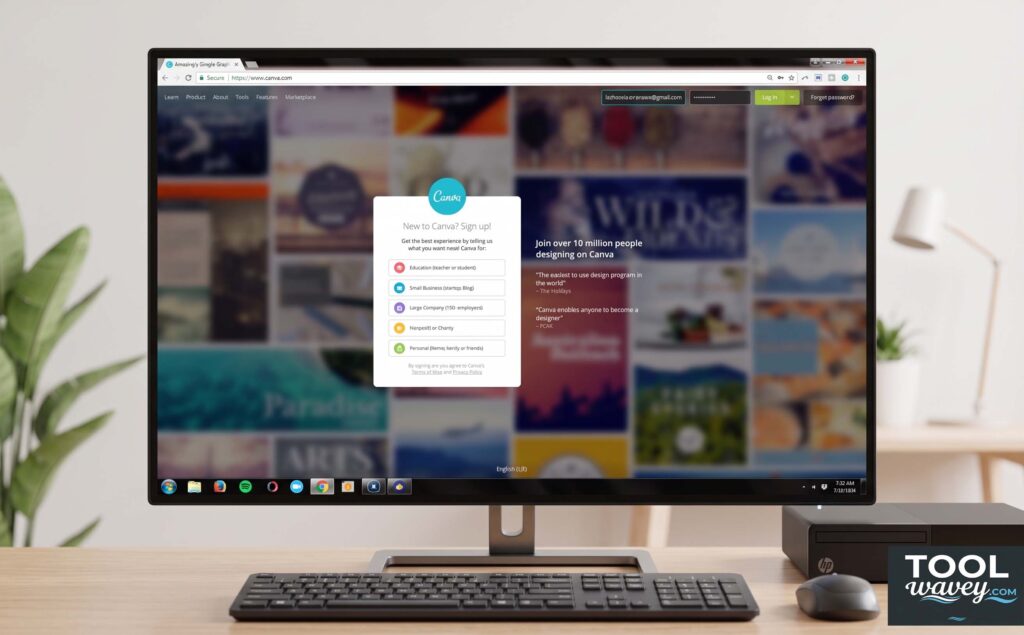
Getting started requires only a few minutes. Sign up for Canva Free using an email address or social account. Once registered, you gain access to thousands of templates, graphics, and editing tools. The platform stores projects online, allowing you to continue working from different devices whenever needed.
Open the Canva Logo Maker
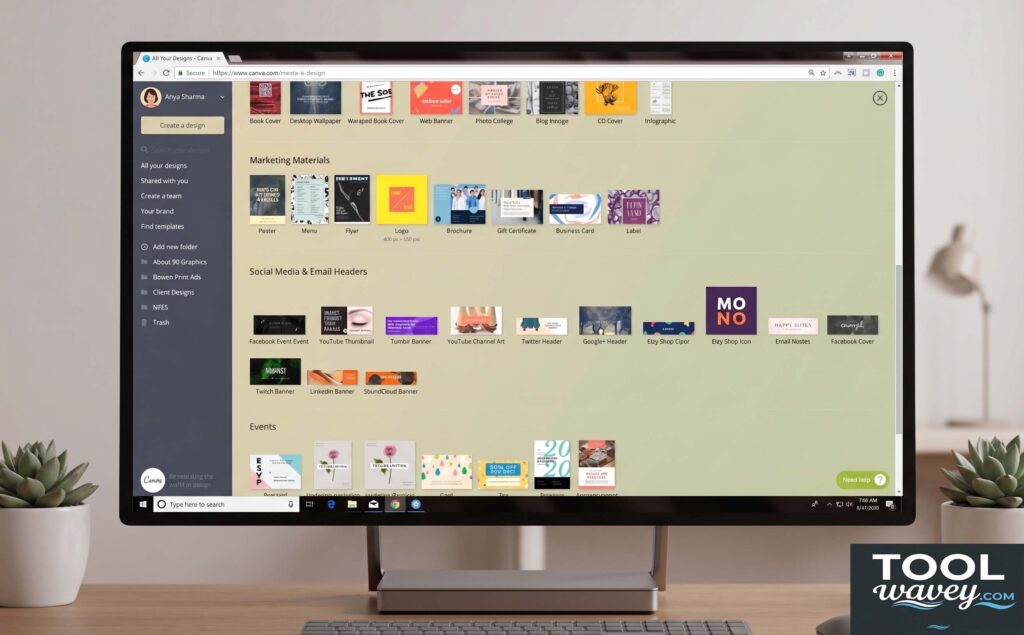
After logging in, search for the Canva logo maker from the homepage. Canva automatically loads logo-sized workspaces optimized for branding projects. This dedicated environment contains everything needed for professional logo design, including fonts, icons, and visual editing features.
Choose a Free Logo Template
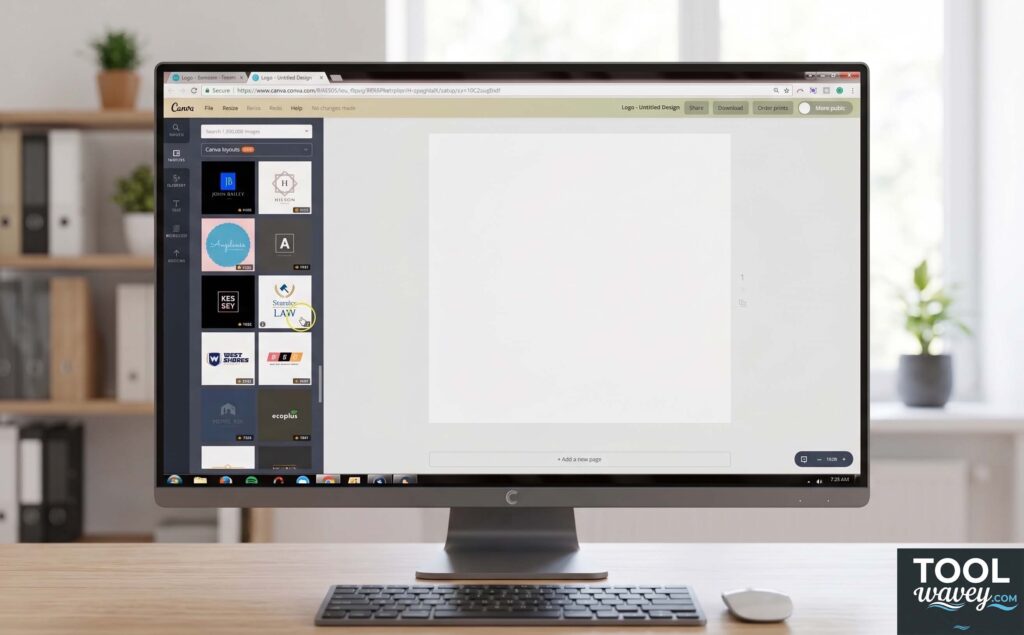
Selecting the right logo template can dramatically reduce design time. Browse categories related to your industry and choose a style that reflects your company personality. Remember, templates are only starting points. Through extensive customization options, you can transform almost every part of the original design.
Start From a Blank Canvas (Optional)
Some business owners prefer complete creative freedom. In that case, choose a blank design instead of a template. Starting from scratch allows you to build every component yourself. This method takes longer yet often results in highly personalized logo graphics design and stronger originality.
How to Customize Your Canva Logo Like a Professional
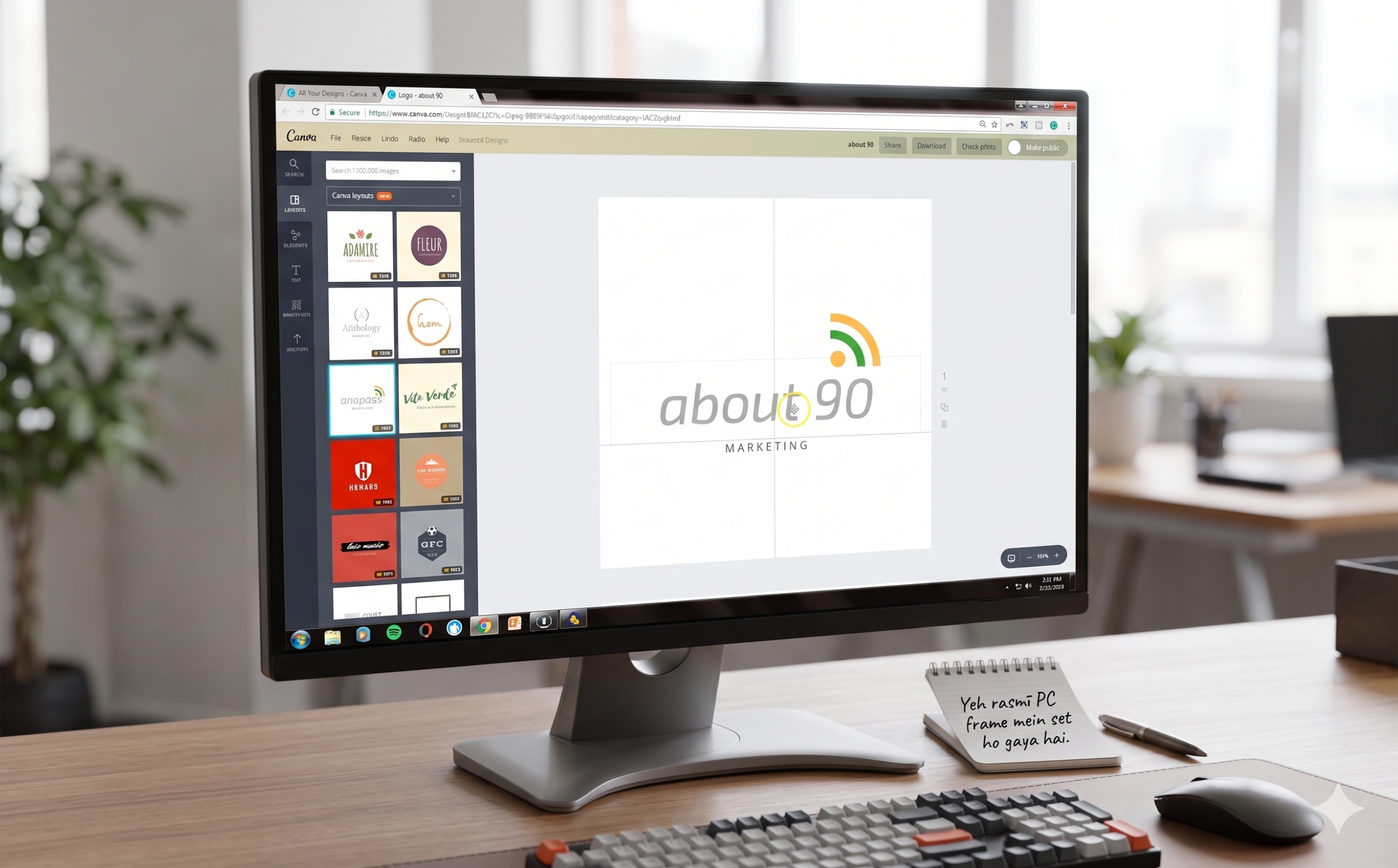
The difference between an average logo and an impressive one usually comes down to customization. Canva provides advanced editing capabilities that allow users to refine text, graphics, spacing, and color schemes. By carefully adjusting these elements, you can transform a simple template into a polished business branding asset. This stage is essential when learning How to design a logo in Canva for free because customization creates uniqueness.
Professional designers rarely settle for default settings. Instead, they experiment with design layout, alignment, proportions, and contrast. The same principle applies here. Test multiple versions of your logo. Compare them side by side. Often the smallest changes improve readability and overall impact. Creating several logo variations also ensures your logo works across websites, packaging, and social media graphics.
Edit Text and Typography
Typography plays a major role in logo effectiveness. The right logo fonts improve readability and strengthen brand recognition. Canva offers hundreds of options ranging from elegant serif styles to bold modern lettering. Always choose a font that aligns with your business personality and remains easy to read.
Change Colors and Branding Elements
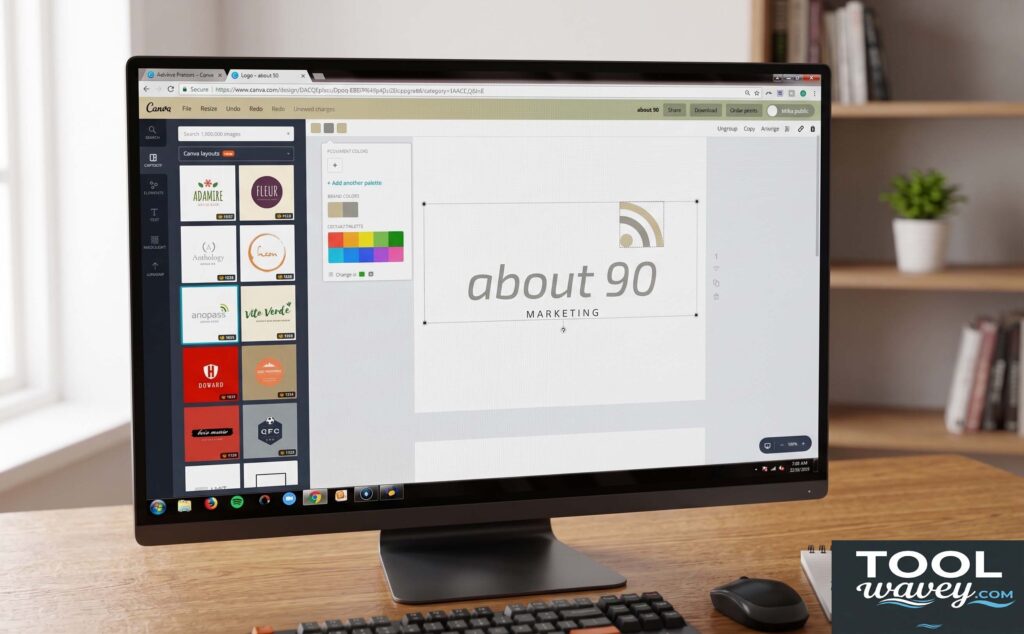
Strong branding requires consistency. Update colors to match your chosen color palette and visual strategy. Consistent use of brand colors helps customers recognize your company faster. Even a simple color adjustment can significantly improve the overall appearance of your logo.
Add Icons, Shapes, and Graphics
The Canva elements library contains thousands of logo elements, symbols, illustrations, and shapes. Adding a carefully selected logo icon can instantly communicate your industry or brand message. However, avoid overcrowding the design. Simplicity often creates stronger recognition.
Adjust Layout and Spacing
Good spacing improves balance and professionalism. Ensure every graphic and text element has room to breathe. A clean arrangement helps viewers understand your logo quickly. Proper alignment also improves scalability when using the design across different marketing channels.
Best Free Canva Logo Templates for Different Industries
Choosing the right starting template can dramatically improve your results. The best Canva logo templates are designed around specific industries and customer expectations. Instead of forcing a generic design to fit your business, select a template that already reflects your niche. This approach speeds up the logo design process while helping you create a more relevant and professional appearance.
A smart template provides inspiration, structure, and balance. However, it should never be copied exactly. Use the template as a framework for your own custom logo. Adjust the colors, fonts, graphics, and layout until it aligns with your company goals. This is one of the easiest ways to master how to customize logo templates in Canva while maintaining originality.
| Industry | Recommended Style | Key Design Focus |
|---|---|---|
| Bakery | Warm and Friendly | Soft Colors and Food Icons |
| Real Estate | Professional | Clean Typography |
| Fitness | Bold and Modern | Strong Shapes |
| Beauty | Elegant | Minimal Design |
| YouTube Channel | Creative | Memorable Graphics |
| Online Store | Modern | Simple Branding |
Small Business Logos
Many entrepreneurs use Canva logo maker for small business projects because it offers affordable branding solutions. Small business logos should be simple, memorable, and easy to recognize. Focus on clean typography and avoid unnecessary graphics that may confuse potential customers.
Restaurant and Bakery Logos
If you are researching how to make a bakery logo in Canva, choose templates that create warmth and trust. Bakery logos often use inviting colors, handwritten fonts, and food-related imagery. These visual cues immediately communicate the nature of the business.
Real Estate Logos
Real estate brands benefit from professional and trustworthy designs. Strong typography, geometric shapes, and subtle color combinations often perform well. A clean logo can help establish authority and confidence among potential buyers and sellers.
Fashion and Beauty Logos
Fashion brands usually rely on elegance and sophistication. Minimalist layouts, premium fonts, and refined color schemes help create a luxurious appearance. Less is often more when designing logos in this industry.
YouTube and Personal Brand Logos
Content creators need logos that stand out across multiple platforms. A distinctive icon combined with bold typography helps improve recognition on channel banners, profile images, and promotional materials.
Canva Logo Design Tips That Make Your Brand Stand Out
One of the biggest mistakes beginners make is adding too many details. Strong logos are often surprisingly simple. Think about globally recognized brands. Most use minimal shapes, clear typography, and limited colors. Simplicity improves recognition and makes logos easier to remember. These are some of the most valuable Canva logo design tips for beginners.
Another important factor is consistency. Your logo should look equally impressive on a website, business card, social profile, and product packaging. Before finalizing your design, test it at different sizes. If the logo becomes difficult to read when reduced, simplify the layout. Successful logo branding depends on versatility and clarity.
Keep Your Design Simple
Simple logos age better than complicated ones. Trends come and go, yet clean designs remain effective for years. Focus on one clear message rather than trying to communicate everything at once.
Focus on Readability
A beautiful logo loses value if people cannot read it. Choose clear fonts and maintain proper spacing between letters. Readability should always take priority over decorative effects.
Use Color Psychology
Colors influence customer perception. Blue often represents trust. Green suggests growth. Black conveys sophistication. Understanding color psychology helps create stronger emotional connections with your audience.
Create a Memorable Visual Identity
Memorable logos often contain one distinctive element that customers instantly recognize. This could be a unique symbol, color combination, or typography style. Small details often create lasting impressions.
Advanced Canva Logo Tricks Most Beginners Miss
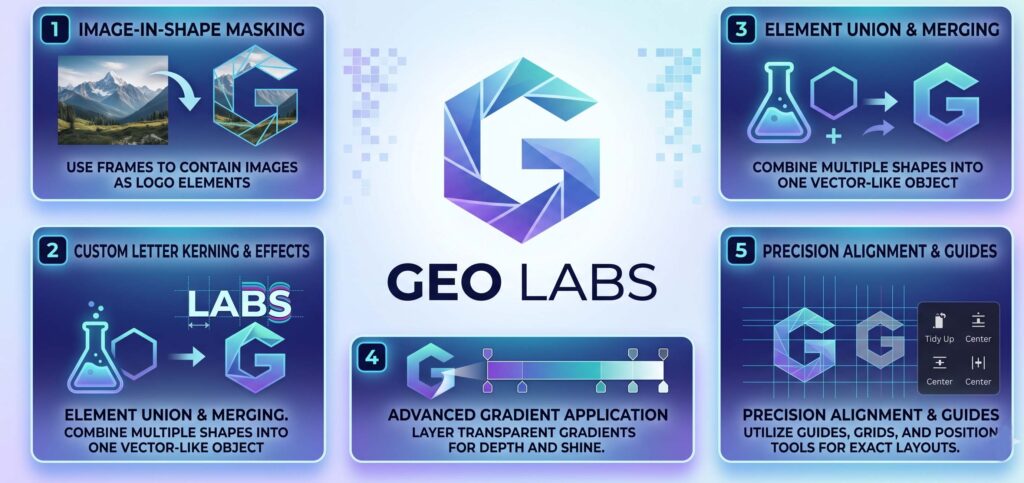
Most people only use basic features inside Canva. However, the platform contains several hidden techniques that can make a logo look significantly more professional. These methods help add depth, visual interest, and uniqueness without requiring advanced design skills. Learning these tricks can elevate your Canva logo design tutorial 2026 results beyond what most beginners achieve.
Professional designers often rely on subtle enhancements rather than dramatic effects. Techniques such as layering, transparency adjustments, and visual depth can make a logo feel more refined. When applied correctly, these methods improve appearance without sacrificing readability or brand clarity.
Create Text Outlines
Canva does not always provide direct outline tools for every text style. However, duplicating text and positioning layers behind one another can create custom outline effects. This technique helps important words remain visible against busy backgrounds.
Add Depth With Layering
Using overlapping elements can create a sense of dimension. Place shapes or graphics slightly behind one another to add visual depth. Even subtle layering can make a logo feel more dynamic and modern.
Use Gradient Elements Effectively
Many designers overlook gradient elements. Gradients add smooth color transitions that create a premium appearance. When used carefully, they enhance modern branding without overwhelming the design.
Create Logo Variations for Different Platforms
Successful brands rarely rely on a single logo version. Creating multiple logo variations ensures flexibility. For example, you may need a square logo for social profiles and a horizontal version for websites.
Common Canva Logo Design Mistakes to Avoid
Even the best tools cannot guarantee success if basic design principles are ignored. Many beginners overload logos with colors, fonts, and decorative effects. The result often feels cluttered and confusing. Understanding these mistakes can save significant time during the logo design process and improve final results.
Another common issue involves copying popular trends too closely. While inspiration is valuable, originality remains essential. A logo should help your brand stand apart from competitors. Focus on building a unique visual identity rather than replicating designs that already exist in the marketplace.
Using Too Many Colors
Too many colors create visual confusion. Most successful logos rely on two or three primary colors. Limiting your palette improves consistency and makes the design easier to remember.
Choosing Generic Icons
Overused symbols often make logos look forgettable. Search for creative alternatives within the Canva elements library and customize them whenever possible to create a more distinctive appearance.
Overcomplicating the Design
Complex logos may look impressive initially, yet they often perform poorly at smaller sizes. Simplicity improves versatility and strengthens recognition across different platforms.
Ignoring Scalability
Your logo should remain clear whether displayed on a billboard or a mobile screen. Always test multiple sizes before finalizing your design. Scalability is one of the most important aspects of professional logo design.
How to Download and Use Your Canva Logo
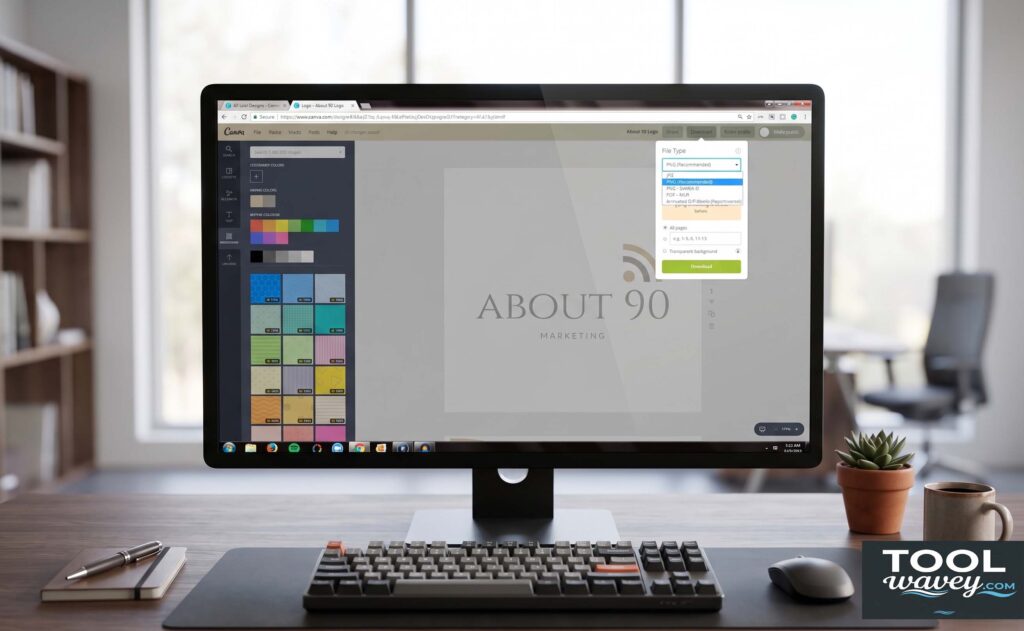
After completing your design, the next step is exporting the file correctly. Many beginners spend hours creating a logo and then download it using the wrong format. Understanding how to download logo from Canva ensures your design looks sharp across websites, marketing materials, and social platforms. Choosing the right file type also affects image quality and usability.
The good news is that Canva logo creator offers multiple export options. Depending on your needs, you can save your logo as a PNG file, JPG file, or SVG file. Each format serves a different purpose. Selecting the correct one helps maintain quality while improving flexibility for future branding projects.
| File Type | Best Use Case | Quality |
|---|---|---|
| PNG file | Websites, Logos, Social Media | High |
| JPG file | Photos and Basic Graphics | Medium |
| SVG file | Professional Scaling and Printing | Excellent |
| Marketing Materials | High |
PNG vs JPG Explained
A PNG file is usually the best choice for logos because it maintains sharp edges and supports transparency. A JPG file works well for images but may reduce quality when used for branding materials.
How to Export High-Quality Files
Always select the highest available quality during export. A high-resolution logo looks cleaner on websites, presentations, and printed materials. Quality should never be sacrificed to save a small amount of storage space.
Transparent Background Options
One of the most requested features is learning how to create a transparent logo in Canva. A transparent background allows your logo to blend naturally into websites, packaging, and promotional graphics. This feature is commonly available through Canva Pro and is especially useful for professional branding.
Can You Use and Trademark a Canva Logo?
Many business owners wonder whether logos created with Canva can be legally protected. The answer depends on the design elements used. Original logos created primarily by you have a better chance of qualifying for trademark protection. However, logos that heavily rely on shared graphics or stock assets may face restrictions.
Before filing a trademark application, review Canva’s licensing policies carefully. Understanding ownership rights is an important part of business branding. If your company plans to build a large brand around a logo, consulting a trademark professional may be a wise investment. This small step can prevent costly legal issues in the future.
Canva Licensing Rules
Both Canva Free and Canva Pro include licensing terms that govern how graphics and templates can be used. Always review current guidelines before launching your logo commercially.
Trademark Considerations
A trademark protects your brand identity from imitation. The more original your design, the stronger your chances of obtaining protection. Unique logos generally provide better legal security than heavily template-based designs.
Commercial Use Guidelines
Most businesses can use Canva-created logos commercially. However, understanding asset licensing remains essential. Always ensure the graphics and elements included in your design meet commercial usage requirements.
“A great logo is not just attractive. It is memorable, versatile, and instantly recognizable.”
Final Thoughts on How to Design a Logo in Canva for Free
Learning How to design a logo in Canva for free gives you complete control over your brand’s visual presence. Whether you operate a small local business, online store, personal brand, or startup, Canva provides everything needed to build a strong logo without hiring a designer. The platform combines ease of use with powerful customization features, making professional branding accessible to everyone.
By following the strategies covered in this guide, you now understand How to design a logo in Canva for free, select the right templates, customize graphics, choose effective colors, and export files properly. More importantly, you know how to build a logo that supports long-term growth and strengthens customer recognition. As your business evolves, continue refining your logo and branding materials. Great brands are not built overnight, yet every successful journey begins with a strong visual identity.
Frequently Asked Questions About How to Design a Logo in Canva for Free
Can I design a logo on Canva for free?
Yes, you can design a logo using Canva Free with access to many templates, fonts, and design elements.
Some premium graphics and advanced features require a Canva Pro subscription.
How to see only free elements in Canva 2026?
Use the search bar in Canva and apply the “Free” filter to display only free elements.
This helps you avoid premium graphics and create designs without extra costs.
Can you legally use Canva to make a logo?
Yes, Canva allows users to create and use logos for personal and commercial purposes.
However, you should review Canva’s licensing terms before trademarking your logo.
What is the best way to create a logo on Canva?
Start with a relevant template, then customize colors, fonts, and icons to match your brand.
Keep the design simple, memorable, and easy to recognize across different platforms.
Are Canva logos royalty free?
Most Canva-created logos can be used without paying ongoing royalties.
However, usage rights depend on the specific elements and assets included in the design.
Expert Tips for Better Canva Logo Results
Professional-looking logos rarely happen by accident. Successful brands spend time refining small details. Test multiple versions before making a final decision. Compare layouts, colors, and font combinations. Sometimes a tiny adjustment dramatically improves overall impact.
Another valuable strategy involves collecting feedback from real customers. Ask friends, colleagues, or potential clients which version feels most trustworthy and memorable. Fresh perspectives often reveal issues that designers overlook. This simple habit can significantly improve your final business logo.
Also read:
How to Add Motion Blur in CapCut Desktop Free: A Simple Guide for Smooth, Cinematic Edits
How to Easily Reduce Audio Noise in CapCut Desktop for Free (2026 Ultimate Guide)
How to Auto Caption Videos in CapCut Desktop for Free: A Complete CapCut PC Tutorial