 by
by Ever noticed how smooth cinematic edits feel almost alive when movement flows naturally across the screen? That’s where CapCut motion blur quietly does its magic. It softens sharp movement and helps you achieve a more realistic look, especially when you are learning how to add motion blur in capcut desktop free for the first time.
It is one of those CapCut video editing effects that instantly upgrades basic clips into something more professional. When used right, it also improves smooth transitions in CapCut and gives your edits a clean, movie-like finish. The goal is simple: make motion feel natural, not robotic. That is exactly why creators rely on cinematic motion blur and motion blur effect in CapCut to polish their storytelling.
What CapCut motion blur Means in CapCut Desktop Free
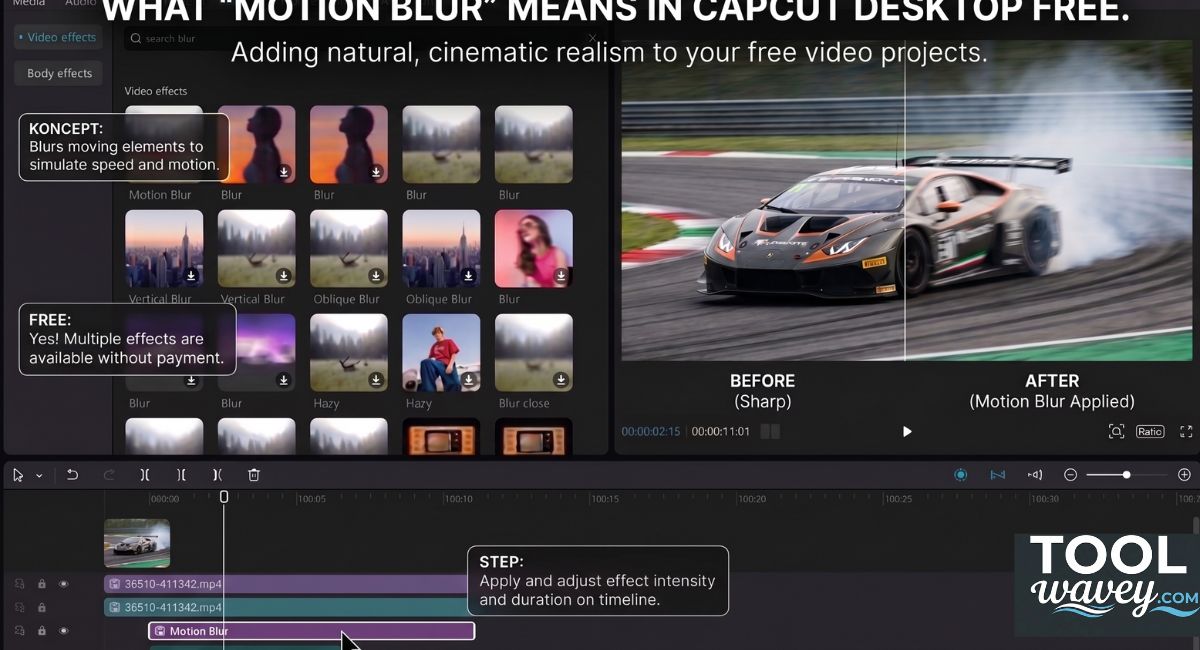
Motion blur is the soft trail you see when something moves quickly. In real life, your eyes do this too. That is why a fast pan or a quick zoom can feel harsh without it. CapCut’s motion blur guide describes the effect as a way to add movement, adjust intensity, and make clips feel more polished. That is the core idea behind how to add motion blur in capcut desktop free.
This matters because clean motion looks more expensive. It feels like cinematic motion blur instead of an abrupt jump. In simple terms, smooth transitions in CapCut are easier to build when your blur matches the speed of the shot. That is why creators use CapCut video editing effects like blur, zoom, and speed changes together. It is a small trick with a big visual payoff.
Is CapCut motion blur PC Available in the Free Desktop Version?
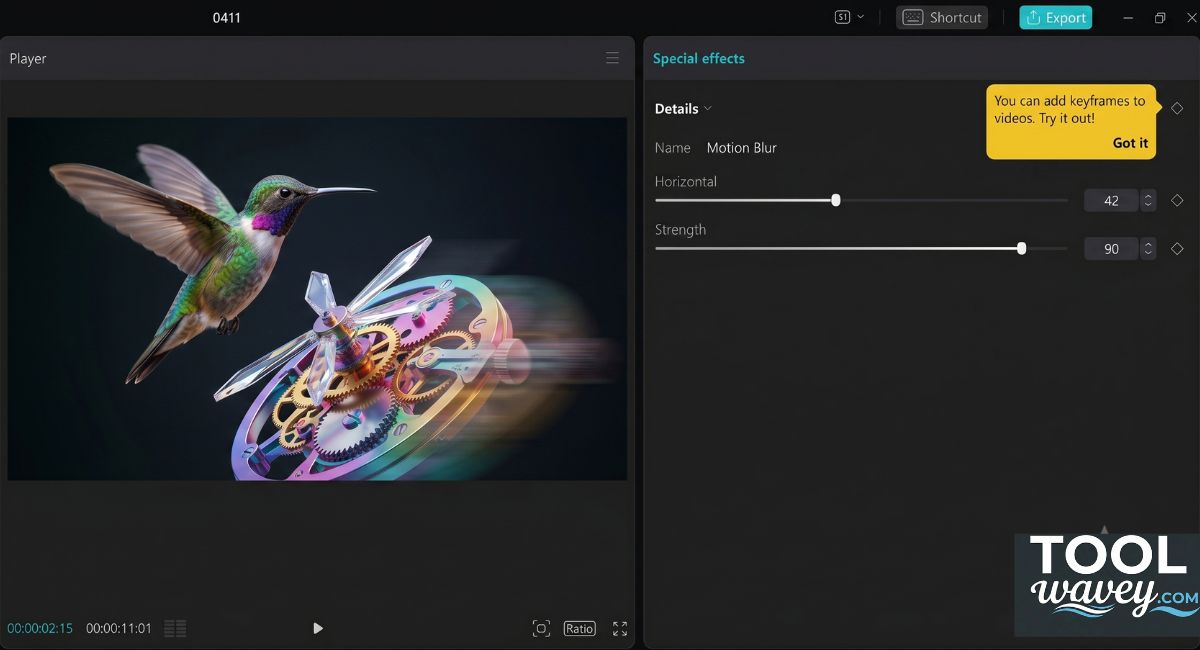
Yes, CapCut’s official desktop pages show motion blur as part of its editing ecosystem. Its desktop editor page is free to download, and its motion blur resources explain that the desktop version can be used to refine blur inside a project. CapCut also publishes free motion blur templates, which shows that this effect is designed to be accessible for everyday creators.
That said, the exact buttons can move a little after updates. CapCut’s own guide shows two common paths on desktop: the Effects route and the Basic tab route. It also mentions keyframe animation for finer control. So, when you learn how to add motion blur in capcut desktop free, you should focus on the workflow rather than one single button name.
| Area | What to expect | Why it matters |
| Desktop editor | Free download | Good for beginner and pro edits |
| Motion blur controls | Intensity and speed-style adjustments | Helps you shape the look |
| Templates | Free motion blur templates exist | Fast shortcut for quick edits |
| Fine control | Effects, Basic tab, and keyframes | Better smooth video motion |
How to add motion blur in CapCut on Desktop Free
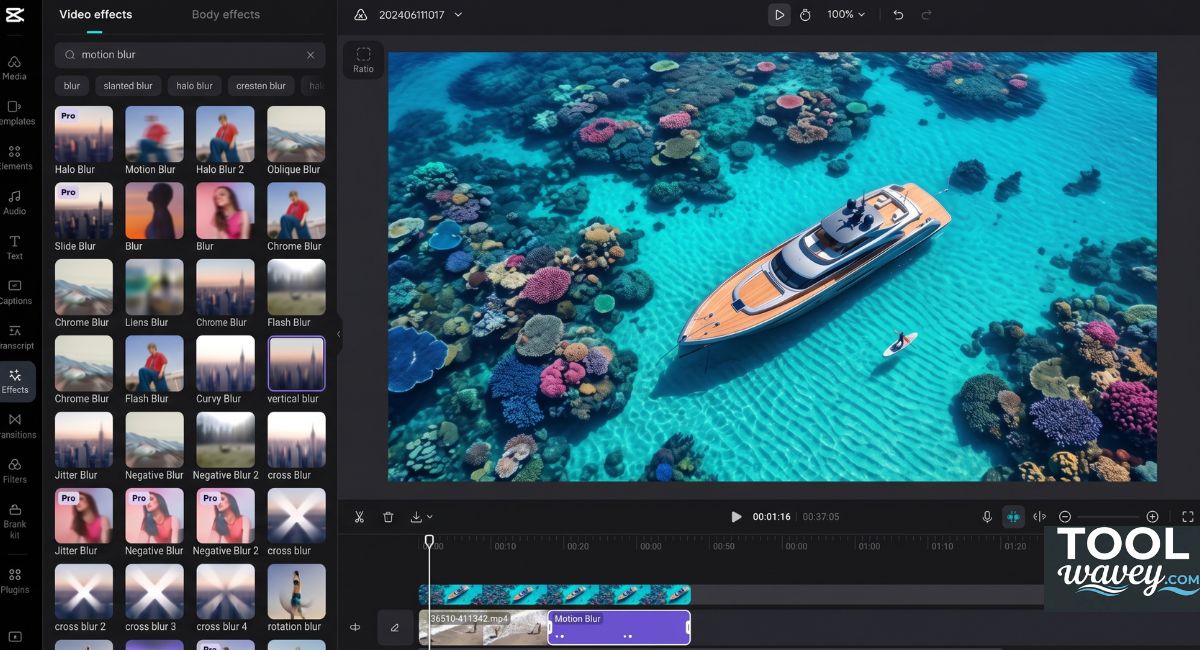
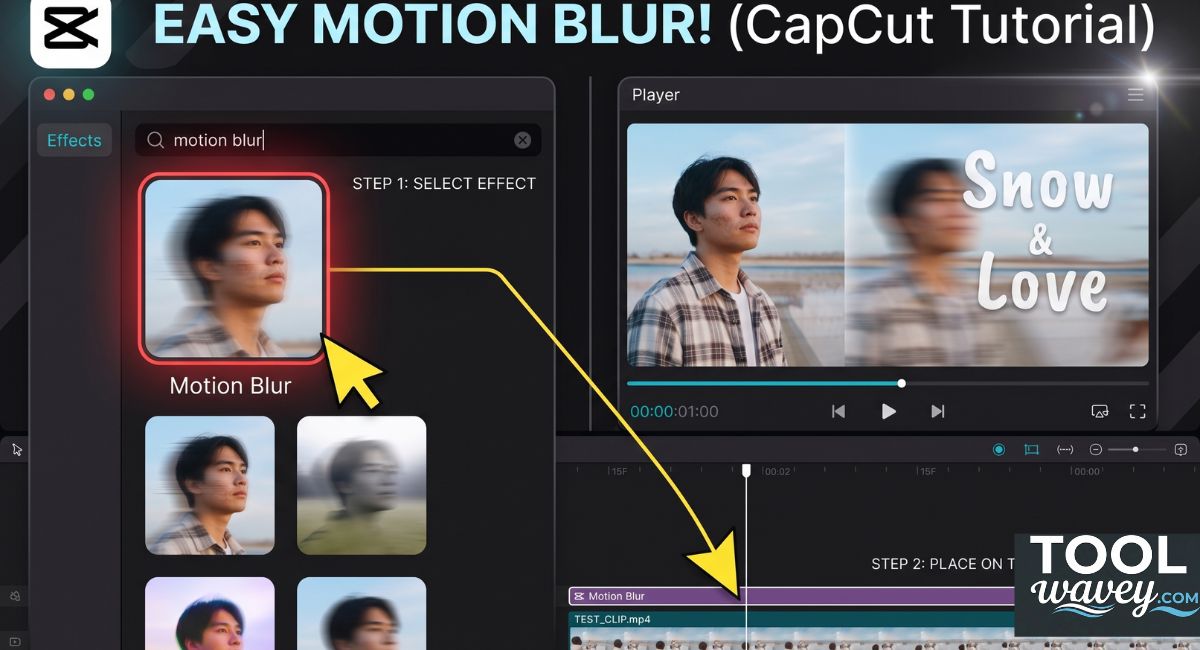
Start with a clean clip. Import your video. Place it on the timeline. Then open the effects or video settings area and look for motion blur. CapCut’s desktop motion blur guide says you can apply the effect from the Effects tab or enable it in the Basic tab, then adjust the look to match the footage. That is the simplest answer to how to add motion blur in capcut desktop free.
The real trick is not only turning blur on. The real trick is timing. If your footage moves fast, keep the blur strong enough to smooth the motion but not so strong that details vanish. That is the heart of how to apply motion blur effect well. It also helps with how to create smooth transitions in CapCut and how to make camera movement smooth, especially in travel clips and beat edits.
how to add motion blur in CapCut PC with a simple workflow
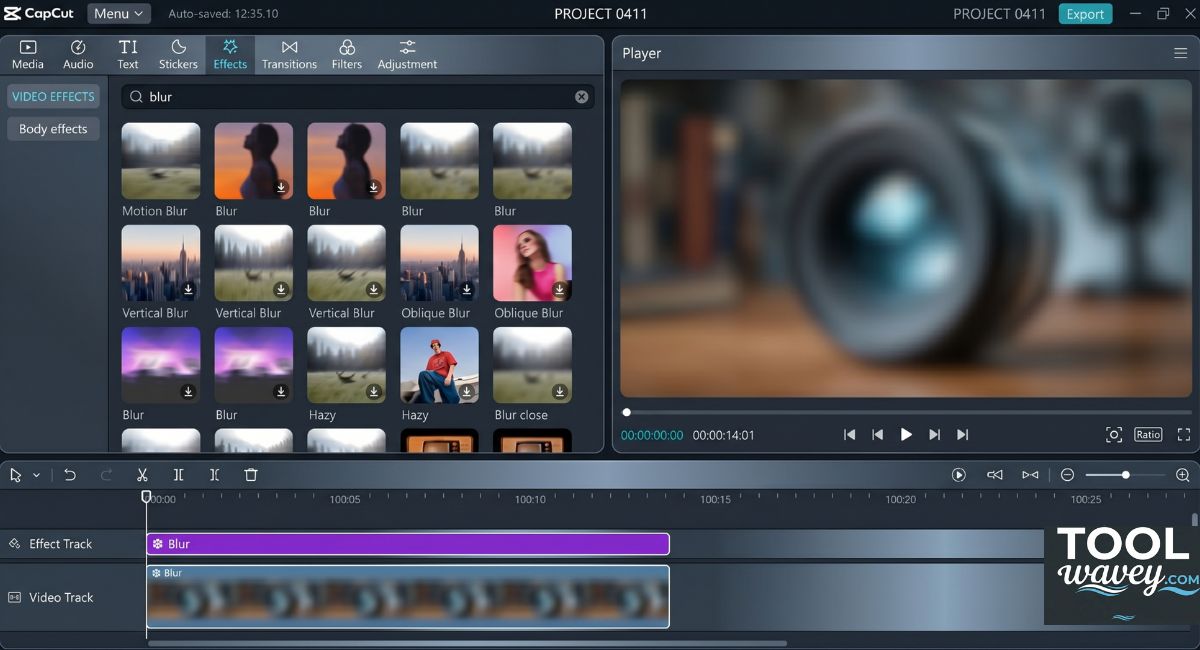
If you want how to add motion blur in CapCut PC to feel less confusing, think in three parts: import, apply, refine. First, drag in the clip. Second, apply the blur effect. Third, preview the motion and adjust until the movement feels natural. CapCut says its desktop editor supports motion blur tuning through intensity, speed, direction, and keyframe-style control.
how to use motion blur in CapCut mobile versus desktop
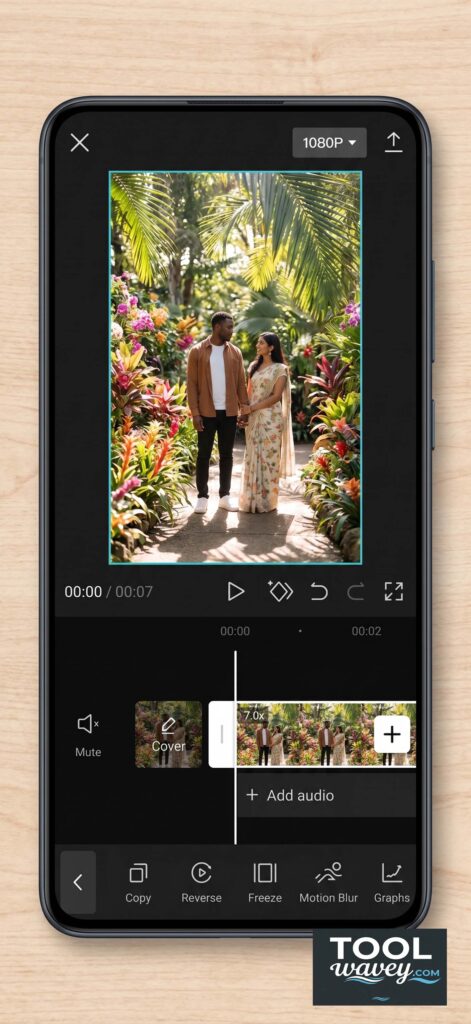
The mobile app is good for quick edits. The desktop version is better for precision. That is why CapCut motion blur mobile works well for fast posting, while CapCut motion blur PC is better for detailed timing and layered edits. If you are chasing professional video editing in CapCut, desktop gives you more room to breathe.
How to use keyframes with motion blur
Keyframes help you change motion over time. That matters when your clip speeds up, turns, or zooms in. CapCut’s desktop motion blur guide mentions keyframe animation as a way to control the effect more precisely across different parts of a video. This is the best route when you want how to use keyframes with motion blur to support a moving camera shot.
Think of it like steering a bike. A small turn gives you a smooth line. A wild turn looks messy. The same idea applies here. When you pair keyframes with blur, you get better camera motion blur and cleaner CapCut transition effects. That is also why how to use speed ramp with motion blur is such a common editing trick in music videos and short-form content.
Best motion blur templates and settings for cleaner edits
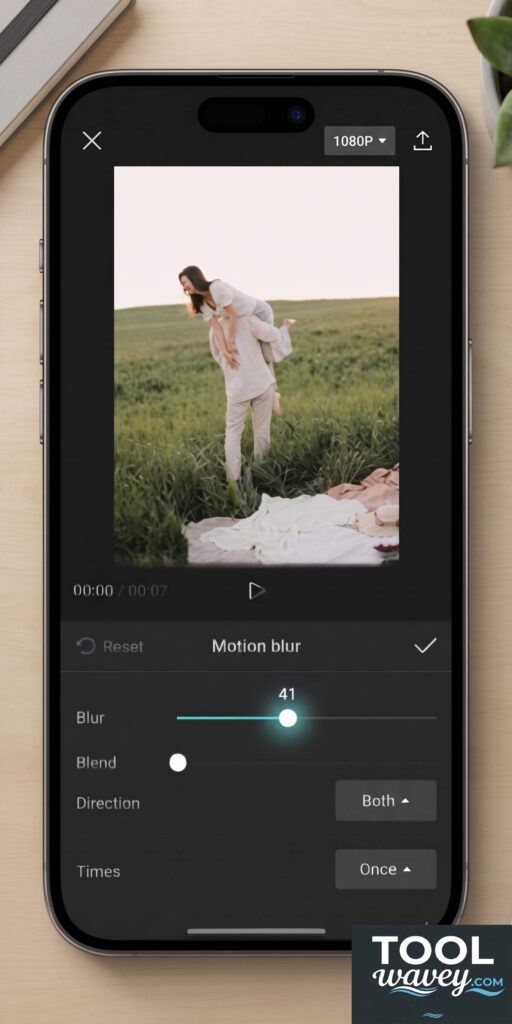
CapCut’s template pages show that motion blur templates exist for fast use. The official site even offers blur-related templates that can be customized in seconds. That is useful when you need a fast result and do not want to build everything from scratch. For creators chasing a quick motion blur CapCut template for cinematic video, templates are a smart shortcut.
The settings still matter, though. The best blur is the one you barely notice. It should feel like a natural part of the movement. That is why best motion blur settings in CapCut usually favor moderate strength over heavy blur. If your goal is how to make travel videos cinematic with motion blur, keep the movement clean and let the blur support the shot instead of swallowing it.
| Video type | Blur feel | Editing goal |
| Travel vlog | Soft and light | smooth transitions in CapCut |
| Action clip | Stronger and faster | camera motion blur |
| Dance edit | Rhythmic and sharp | Beat-matched movement |
| Gaming montage | Quick and energetic | smooth video motion |
| Cinematic B-roll | Calm and polished | cinematic motion blur |
A simple case study
A travel creator posts a train-window clip. The shot is good, but the pan feels stiff. After applying blur and a small speed change, the clip looks softer and more fluid. That is a small edit with a big result. It is also a good example of how to use motion blur for cinematic edits in CapCut without overcomplicating the workflow.
How to fix common blur problems in CapCut motion blur
Sometimes the blur feels missing or too weak. Sometimes it looks muddy. That usually means the settings do not match the clip speed. CapCut’s desktop motion blur guide shows that the effect can be tuned in more than one place, so a missing result often comes from applying the effect in the wrong layer or using the wrong control path. That is the core of how to fix motion blur not working in CapCut.
If the blur effect is not showing, check the clip first. Then check the effect layer. Then preview again. CapCut also offers motion blur templates and blur-specific pages, so it is worth testing a template when the manual route feels stubborn. This is the easiest answer to how to fix motion blur effect not showing in CapCut and also a useful habit for motion blur effect in CapCut for beginners.
CapCut speed curve, templates, and the final polish
Speed changes and blur work well together. CapCut’s motion blur resources explain that the effect can be paired with motion changes to create a stronger sense of flow. That is why many editors use the CapCut speed curve when they want a smoother rise and fall in speed. It helps create the feeling behind how to combine motion blur and speed ramp in CapCut.
This is where style turns into polish. A plain clip becomes an edit. A decent edit becomes a story. If you are trying to how to make smooth transitions in CapCut with motion blur, speed curve, blur, and timing should work like a team. That is also the cleanest path to how to edit cinematic videos in CapCut without making the video feel fake or overdone.
How to Easily Reduce Audio Noise in CapCut Desktop for Free
FAQs on how to add motion blur in CapCut
How does motion blur work on CapCut?
CapCut motion blur adds a soft streak to fast movement so clips look more natural and less jumpy; CapCut says you can tune strength, blending, and direction for the look you want.
How do you get perfect motion blur on CapCut?
Use a moderate blur level, match it to the speed of the shot, and preview before export; CapCut’s own guides say blur works best when you adjust it to the motion and refine it with keyframes.
How do you add motion blur to animation in CapCut?
Animate the layer with keyframes first, then apply motion blur to the moving part so the blur changes with the motion; CapCut describes keyframes as the tool for smooth animation and blur control.
How do I add motion blur to a photo on CapCut?
Use CapCut’s photo blur effects or free image motion blur templates, then adjust the effect until the photo has a natural moving feel. CapCut says these photo blur tools are designed for fast, customizable edits.
How to apply blur to CapCut?
Open the clip or image, choose the blur or motion blur tool, and drag the effect onto the media before fine-tuning the settings. CapCut’s template and effect pages show that blur can be applied in just a few clicks.
How to apply motion blur to all clips on CapCut?
Drag the motion blur effect across the full video strip so it covers the whole timeline, or split the project and apply it clip by clip. CapCut says you can extend the effect across the entire video or use it on separate scenes.
Final thoughts
If you remember one thing, make it this: motion blur works best when it feels natural. That is why how to add motion blur in capcut desktop free is not just about clicking an effect. It is about timing, taste, and restraint. CapCut’s official guides and template pages show that blur can be adjusted, templated, and paired with keyframes for better results.
Once you get the hang of it, your edits will look cleaner fast. Your pans will feel softer. Your transitions will stop looking clunky. And your final video will carry that polished, movie-like energy people notice right away. That is the real win when you learn how to add motion blur in capcut desktop free.